Check-in reminders
Check-in reminders help regular site visitors remember to check in each day. Site admins can choose when reminders are sent, how they are delivered, and who should be excluded. Visitors can then respond from a personalised link to check in, snooze the reminder, or manage their own reminder settings.
This feature is designed to reduce missed check-ins without manual follow-up from admins.
In this article...
- Who this feature is for
- Quick guide: how to set up check-in reminders in EVA Check-in
- What admins can configure
- What happens after reminders are enabled
- Who receives a reminder
- How reminders work for visitors
- Analytics and reporting
- Manage visitor reminder preferences as an admin
- Key concepts explained
- Constraints and known limits
Who this feature is for
Check-in reminders help workers or regular visitors remember to check-in, while helping administrators improve check-in compliance.
They are intended for returning visitors or workers with a check-in history at the site. Visitors who have never checked in since reminders were enabled are not included.
Quick guide: how to set up check-in reminders in EVA Check-in
Set-up steps
- Make sure you have access to the relevant site.
- Confirm which visitor types should receive reminders.
- Decide which notification method you want to use: push notification, email, SMS, or Microsoft Teams.
Main steps
- Open check-in reminder settings
Go to Site information > Options > Check-in Reminders. - Turn reminders on
Enable Send check-in reminders for the site. - Choose whether visitors can check in from the reminder
Turn on Add check-in button to reminders if you want visitors to be able to start check-in directly from the reminder page. - Set the reminder schedule
Choose the reminder time in the site's local timezone and select the active days. The default reminder time is 08:30 and the default active days are Monday to Friday. - Set exclusions
Add any visitor types or date ranges that should never receive reminders. - Choose how reminders are sent
Select the notification method you want to use - e.g. SMS, e-mail, Teams, push notification, or a combination. - Update relevant message templates
Customise the notification content for the channels you use. - Save your changes
After saving, EVA checks whether the current day's reminder needs to be scheduled straight away.
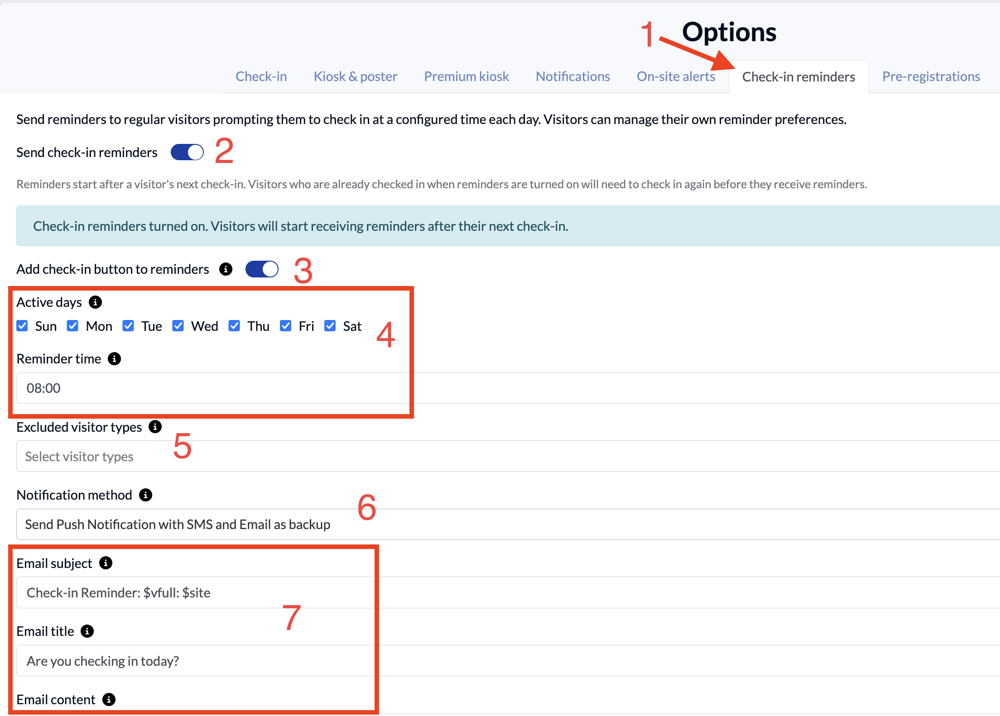
Setup details - what admins can configure
At Site information > Options > Check-in Reminders
| Setting | What it does |
|---|---|
| Send check-in reminders | Turns reminders on or off for the site. |
| Notification method | Chooses whether reminders are sent by push notification (only received by mobile app users), email, SMS, Microsoft Teams, or a combination. |
| Reminder time | Sets the time reminders are sent each day in the site's local timezone. |
| Active days | Chooses which days of the week reminders are sent. |
| Add check-in button to reminders | Adds a Check in now button to the reminder page so visitors can start their check-in directly from the link. If this option is not enabled, visitors will need to check in using another method when they receive the reminder (e.g. kiosk, mobile app, QR scan) |
| Excluded visitor types | Prevents selected visitor types from receiving reminders. |
| Excluded dates | Stops reminders being sent during selected date ranges - e.g. holidays or closure periods. The from and to dates are both inclusive. |
| Message templates | Lets you customise the content sent by each notification channel. Supported message template placeholders are $vfirst, $vlast, $vfull, $site, and $reminderLink. |
What happens after reminders are enabled
When reminders are enabled for the first time, EVA records an activation date for the site. Only visitors who are not of an excluded visitor type and check in on or after that date become eligible for future reminders. This avoids sending reminders to prior/historical visitors on day one.
Who receives a reminder
At the configured day and time, EVA sends reminders to visitors when all of the following conditions are met:
- The site has reminders enabled.
- Today is an active day and is not excluded by a date range.
- The visitor has checked in at least once on or after the date reminders were enabled for the site.
- The visitor has not checked in today.
- The visitor's type is not excluded.
- The visitor has not paused or opted out of reminders.
- The visitor has not already received a reminder today.
How reminders work for visitors
Receive a reminder
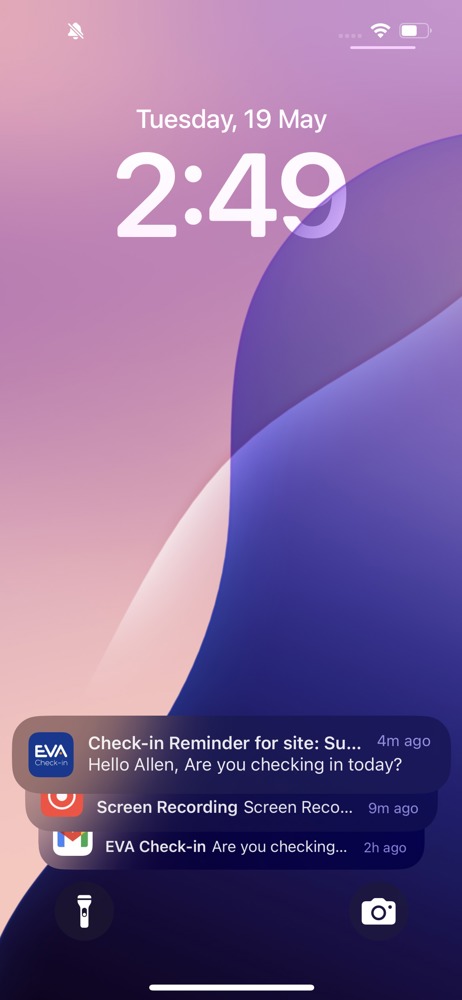
At the configured time, eligible visitors receive a reminder by the configured method/s. The reminder contains a personalised link with an encrypted token that identifies the visitor.
The reminder link is valid for 24 hours.
Example - push notification
Use the reminder page
The visitor reminder page opens without a login. What the visitor sees depends on whether they have already checked in.
If they have already checked in today: they see a confirmation message and do not need to do anything else.
If they have not checked in today: they can use the options below.
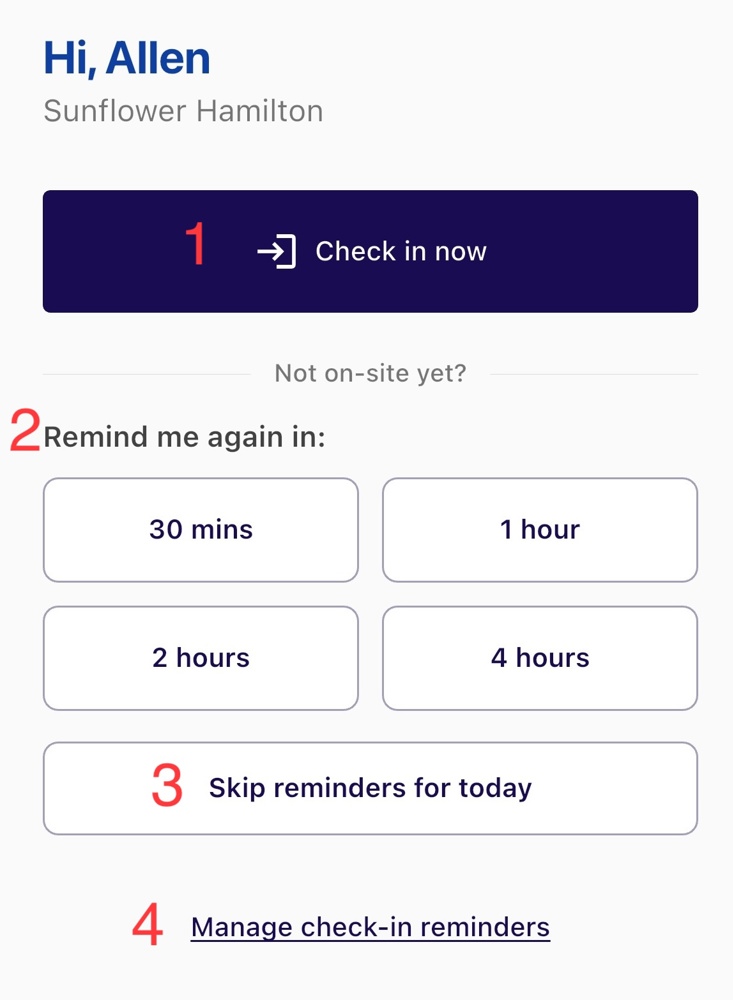
- Check in now — available only when the admin has enabled this option. This starts the check-in flow with the visitor's details pre-filled.
- Snooze — lets the visitor choose 30 mins, 1 hour, 2 hours, or 4 hours before receiving another reminder.
- Skip reminders for today — stops any further reminders for the rest of the current day.
- Manage check-in reminders — opens the visitor's personal reminder settings page.
Update reminder settings
Visitors can open their reminder settings from any reminder link. This page is also token-authenticated and does not require a login.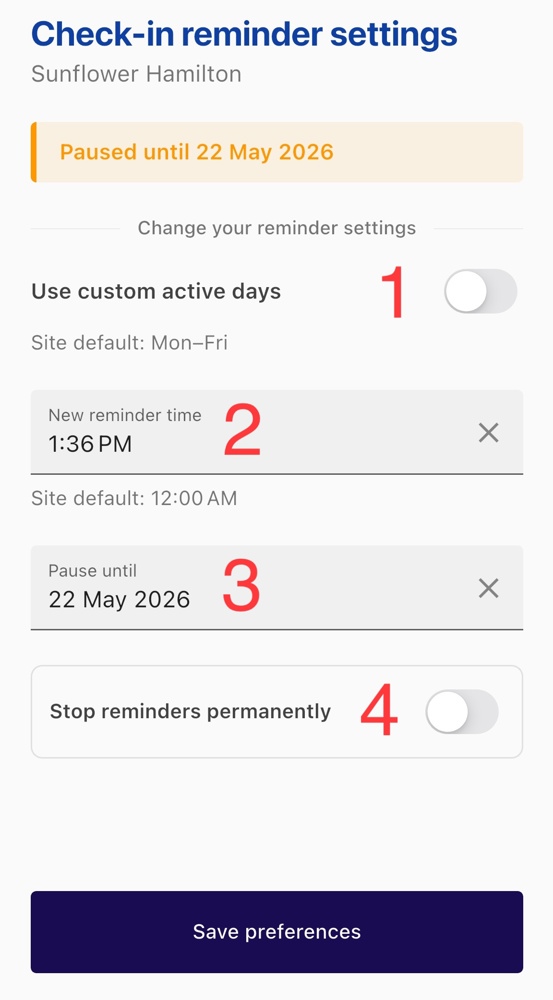
Visitors can:
- choose their own active days
- set a different reminder time from the site default
- pause reminders until a selected date
- stop reminders permanently
These preferences are saved against the visitor's profile for that site.
Manage reminders after check-in
After a successful check-in, EVA can show a Manage check-in reminders button on the success screen when reminders are enabled for the site.
This button is shown only when the check-in was not completed through the dedicated kiosk app or as an admin-on-behalf check-in.
It can, however, be available after methods such as QR code scan, contactless check-in, pre-registration, mobile app check-in, and checking in directly from a reminder link.
Analytics and reporting
To understand how check-in reminders are performing, and whether visitors are opting out or ignoring reminders, go to Reports > Check-in reminder logs.
This report is available to users with the Operations, Customer Administrator, or Cloud Manager role.
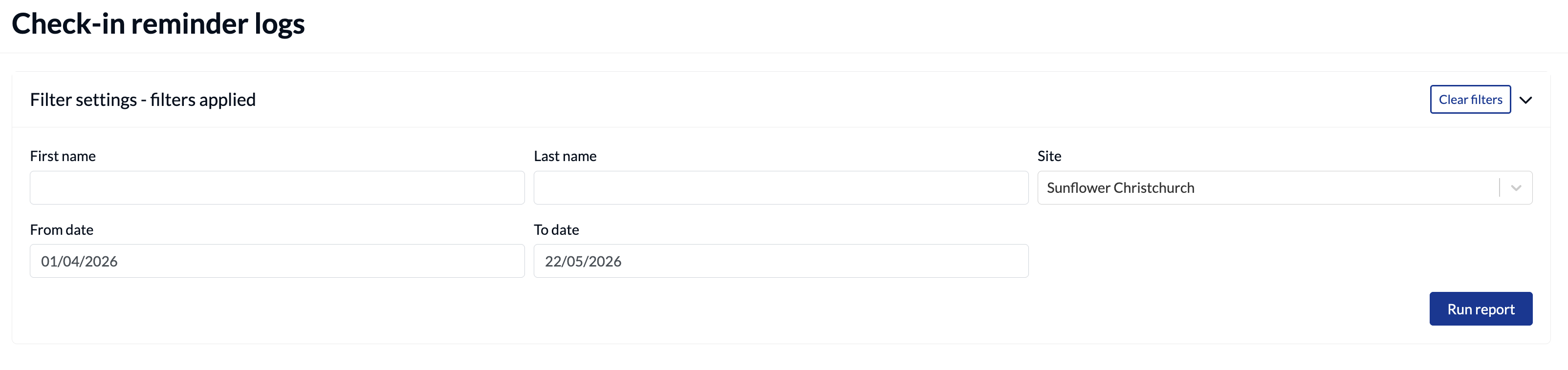
Filters
Reports can be filtered by name, date and site. Select your filters and then click Run report.
Summary cards
Summary cards are updated based on your selected filters. Select a summary card to filter the visitor breakdown table by that result.

| Card | What it means |
|---|---|
| Reminders sent | Total number of reminders successfully delivered. |
| Conversions | Visitors who checked in within 4 hours of receiving their reminder. |
| Conversion rate | Conversions divided by reminders sent, shown as a percentage. |
| Checked in late | Visitors who checked in more than 4 hours after the reminder. |
| Ignored | Visitors who did not check in within the 4-hour conversion window. |
| Snoozed | Visitors who asked to be reminded again later. |
| Visitors with reminders turned off | Visitors who have paused or disabled reminders. |
| Visitors with a custom schedule | Visitors using different days or a different time from the site default. |
| Consistently ignoring | Visitors who have been sent at least 3 reminders and have ignored 50% or more of them. |
Visitor breakdown table
The report includes a visitor table with sortable columns, for example:
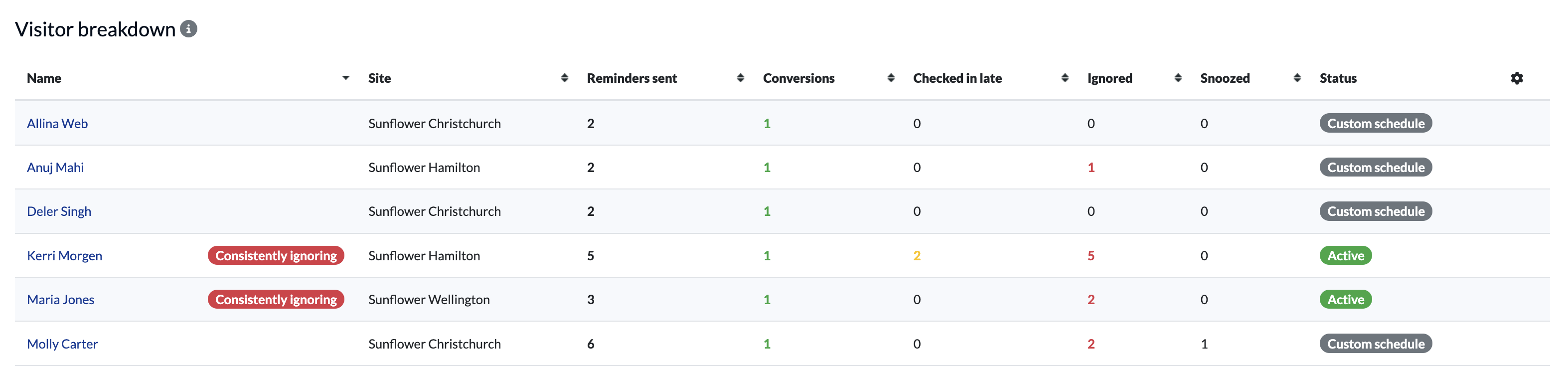
Each row shows:
- name
- site
- reminders sent
- conversions
- checked in late count
- ignored count
- snoozed count
- status badges such as Active, Disabled, and Custom schedule
Manage visitor reminder preferences as an admin
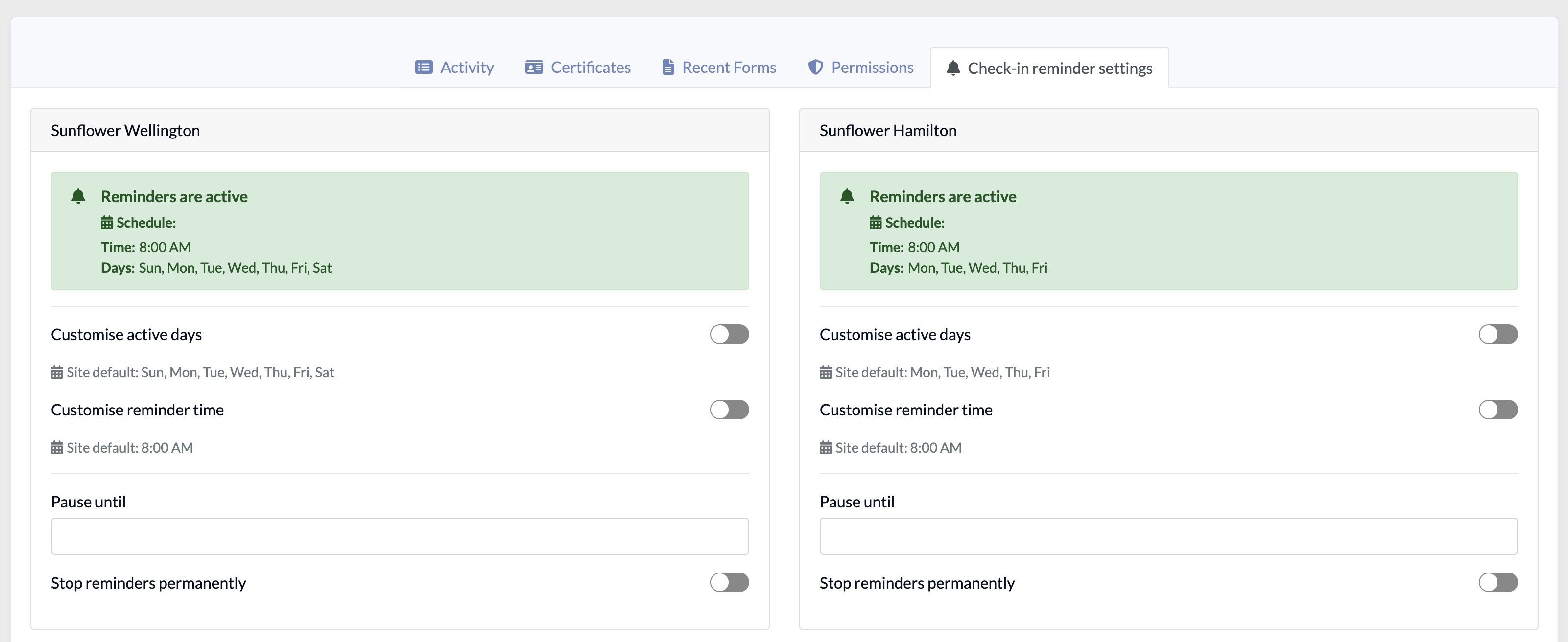
Admins can open a visitor's profile and use the Check-in reminder settings tab to view or update reminder preferences for each site the visitor can access. When the profile is saved, the changes are applied on the visitor's behalf.
Key concepts explained
Consistently ignoring
A visitor is marked as Consistently ignoring when both of these are true within the reporting time period specified:
- they have been sent at least 3 reminders
- they have ignored at least 50% of them
Order does not matter. EVA uses the overall ratio, not a streak.
| Reminders sent | Ignored | Ignored % | Consistently ignoring? | Why |
|---|---|---|---|---|
| 2 | 2 | 100% | No | Fewer than 3 reminders sent. |
| 3 | 1 | 33% | No | Below the 50% threshold. |
| 3 | 2 | 67% | Yes | At least 3 sent and at least 50% ignored. |
| 3 | 3 | 100% | Yes | At least 3 sent and at least 50% ignored. |
| 10 | 5 | 50% | Yes | At least 3 sent and at least 50% ignored. |
| 10 | 6 | 60% | Yes | At least 3 sent and at least 50% ignored. |
| 10 | 4 | 40% | No | Below the 50% threshold. |
| 5 | 3 | 60% | Yes | At least 3 sent and at least 50% ignored. |
| 4 | 2 | 50% | Yes | At least 3 sent and at least 50% ignored. |
| 4 | 1 | 25% | No | Below the 50% threshold. |
Examples:
- Visitor A: Ignored, Checked in, Ignored, Checked in, Ignored — qualifies.
- Visitor B: Checked in, Checked in, Ignored, Ignored, Ignored — qualifies.
- Visitor C: 10 sent, 4 ignored — does not qualify because the ignored rate is 40%.
Conversion
A conversion means the visitor checked in within 4 hours of the reminder being sent. If the visitor checks in more than 4 hours after the reminder, they are counted as Checked in late.
Snooze
Snoozing means the visitor asks to be reminded again after 30 minutes, 1 hour, 2 hours, or 4 hours. If they check in before the snooze ends, the deferred reminder is cancelled automatically.
Active days
Site defaults and visitor-specific active days are stored as a day-of-week pattern. In the UI, this appears as a set of checkboxes. If a visitor has custom active days, EVA uses those days instead of the site default.

Activation date
When reminders are first turned on, EVA records an activation date. Only visitors who have checked in since that date are eligible for reminders. This helps keep reminders focused on active site users.
Token-based access
The reminder and settings pages do not require an EVA admin login - to allow visitors to manage their own reminder settings and preferences. Instead, each link includes a secure token that identifies the visitor.
- The reminder link used in notifications is valid for 24 hours.
- The reminder settings page token is valid for 7 days.
Excluded dates
Excluded dates stop reminders being sent during selected date ranges such as public holidays or shutdown periods. Both the from and to dates are inclusive.
Constraints and known limits
| Constraint | Details |
|---|---|
| One scheduled reminder per person per day | A visitor receives at most one scheduled reminder per site per day. Snoozed follow-up reminders (set by the visitor) are additional to this. |
| 4-hour conversion window is fixed | The 4-hour conversion window cannot currently be changed per site. |
| Reminder link expires after 24 hours | The short URL in the notification expires after 24 hours. The settings page token remains valid for 7 days. |
| Only available for visitors with recent activity | Visitors who have never checked in since reminders were enabled are not included. They cannot be added manually. |
| Analytics default to the current day | You can choose a different date range via the date filter. |