In and out board
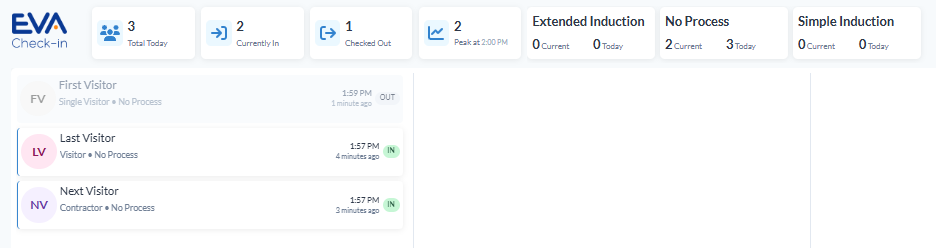
The In and out board in EVA Check-in shows who is currently on site and who has checked out today. Use it to monitor activity in real time and display a live board on a large screen in your workplace.
In this article
Before you start
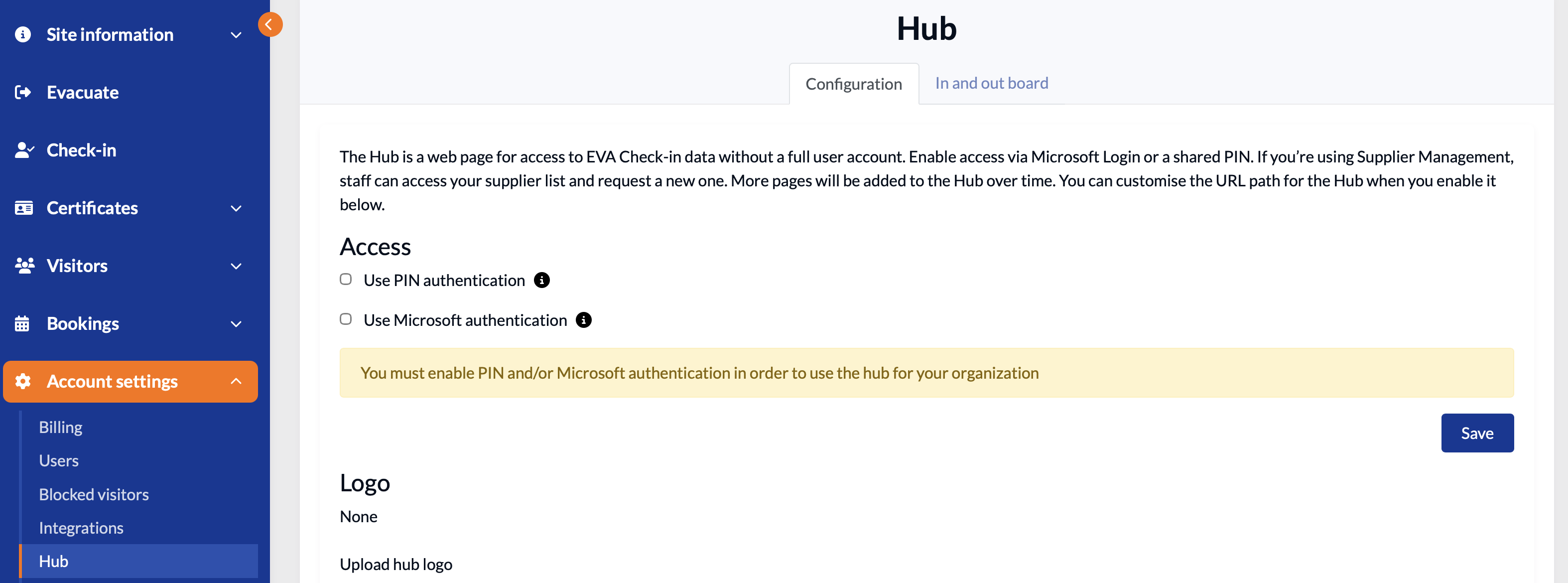
Before you set up an in and out board for a site, make sure the Hub is enabled. You will need to add a method of authentication (PIN and/or Microsoft).
Set up an in and out board within EVA Check-in
The in and out board is set up within the Hub (Account settings > Hub > In and out board tab).
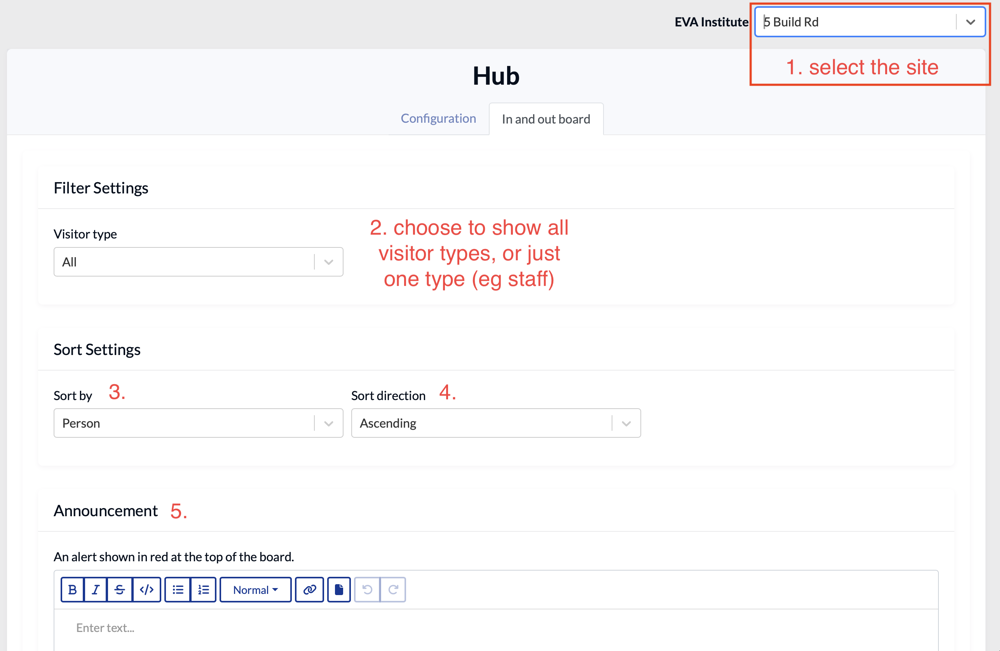
- Select the site you want any changes to the defaults to apply to
- On a board you can either show all visitor types, or one visitor type (e.g. staff)
- The display can be sorted by names (Person) or time of check-in/out (Check-in/out activity)
- Choose the sort direction
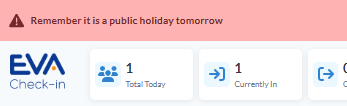
- Optionally, add an announcement to display in red at the top of the board.
What is displayed?
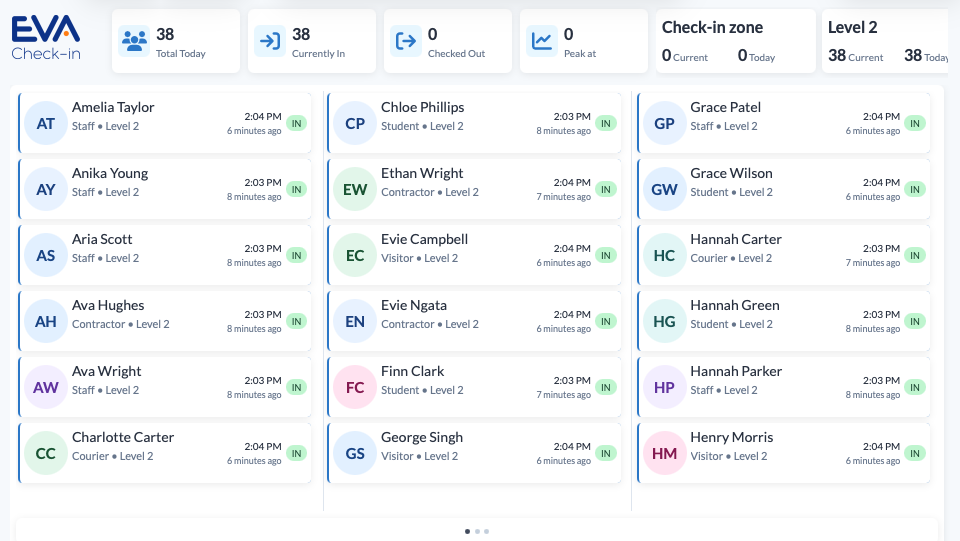
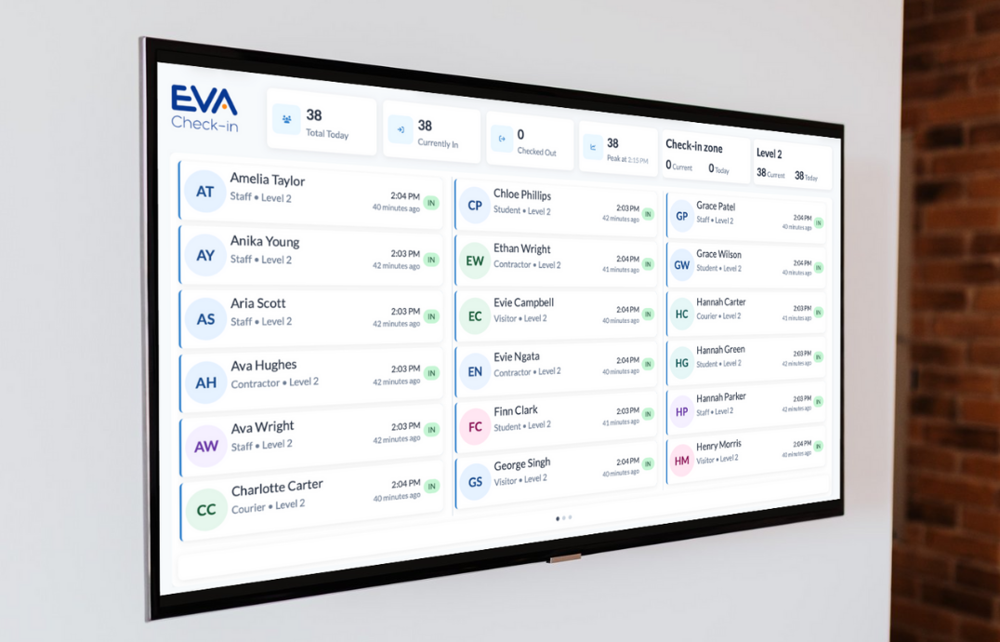
The board shows everyone who has checked in today, including people who are:
- currently checked in
- already checked out
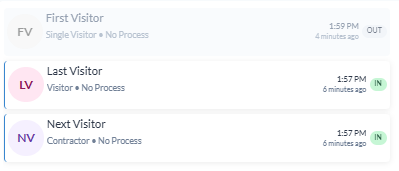
It can also show:
- visitor type colour coding (in the example above, pink = visitor, purple = contractor)
- site totals
- peak on-site count and time

- zone-based metrics, if your site uses zones
If your site has multiple zones, the zone metrics may rotate at the top of the board.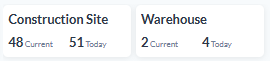
Announcements
Use announcements to display important site messages in red at the top of the In and out board, such as:
- visitor instructions
- temporary site notices
- health and safety reminders
Announcements appear prominently so people can see them quickly when viewing the board.
You can update this whenever you want to display a different announcement, or remove the announcement. 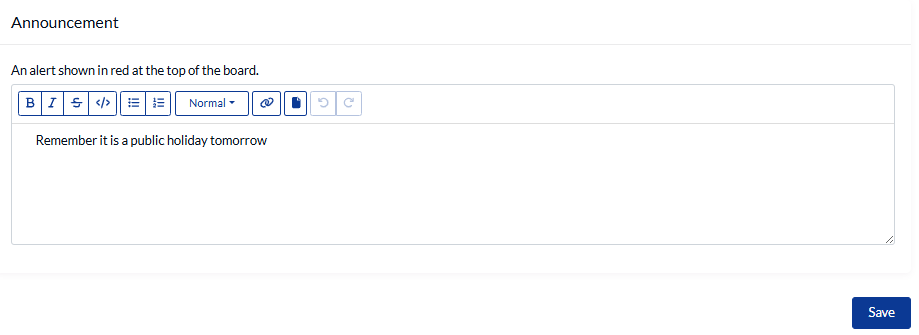
Who can see the in and out board
The In and out board can be seen by anyone in your organisation with a Microsoft login and/or anyone with the PIN you setup for your Hub. It is designed for large screen display - e.g. on a monitor in your workplace.
What is the Hub?
The Hub is a web page for access to EVA Check-in data without a full user account. Enable access via Microsoft login or a shared PIN. It's currently used for Supplier Management and the In and out board.
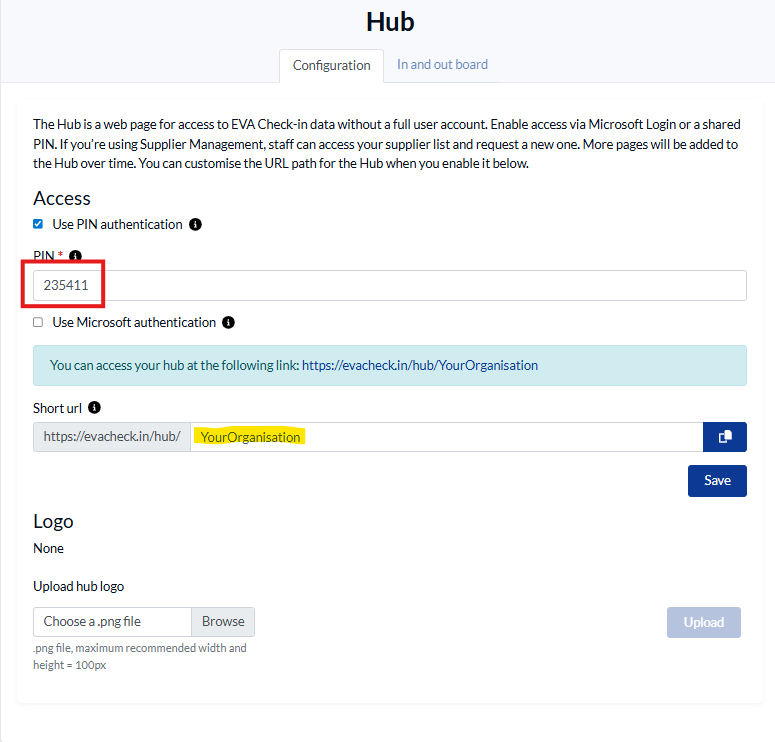
- Set up authentication with PIN (your choice) and or Microsoft Login
- Choose the short URL for people to use to access the Hub
Show the In and out board
- Go to the Account settings > Hub > Configuration tab
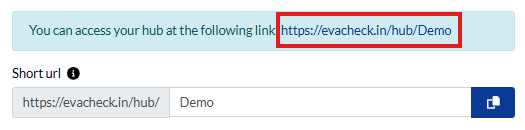
- Click the short URL you configured to open your Hub, or copy and paste to your large screen display device.
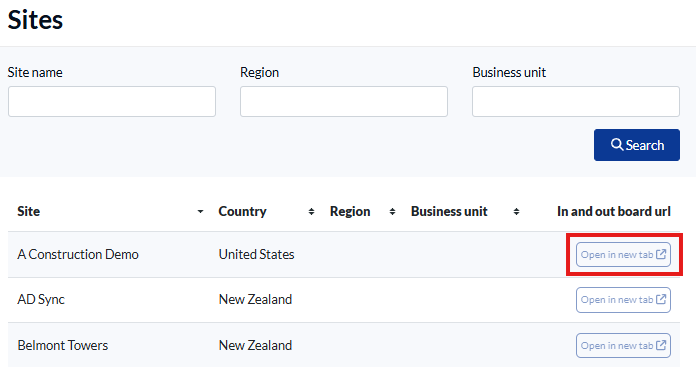
- Click Open in new tab next to the site in and out board you wish to display
- You may need to enter your PIN at this point
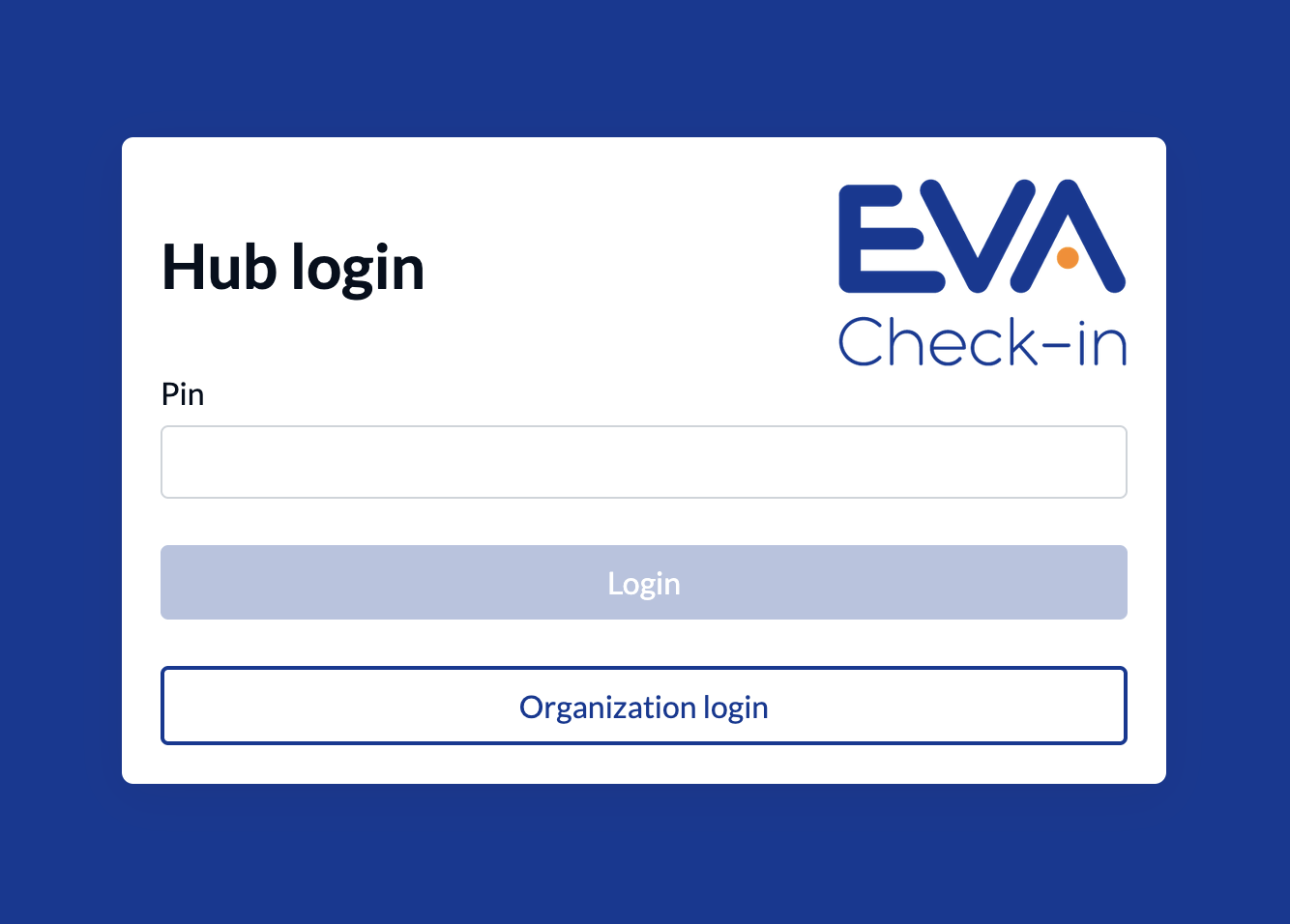
- Then you will be able to see your In and out board.