Manage permits (pre-release draft)
Pre-release documentation — subject to change. Permit features, labels and steps may change before release. Your organisation’s permit types and your access also affect what you see.
Manage permits
Permits help supplier and customer teams prepare, approve, manage and close work that needs specific checks or authorisation. A permit brings together the work details, people carrying out the work, approvals, worker sign-ons and a record of changes.
Use this guide to start a permit, complete actions and check that the right steps have been completed before work begins.
Quick links
Start a permit
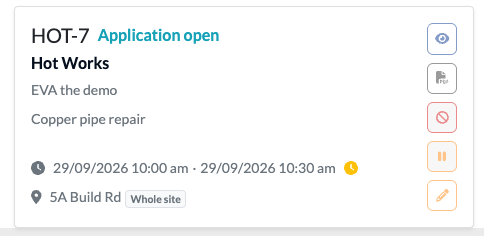
A permit type determines the information, checks, approvals and worker sign-on steps needed for a particular kind of work. Each new permit receives a unique ID, such as HOT-7.
You need permission to create permits. The fields available to you depend on the permit type and your access.
- Open Permits and select Start permit.
- Select the permit type.
- Select the supplier and site.
- Select the applicable zones, if needed. If you leave zones blank, the permit applies to the whole site.
- Enter the Valid from and Expires on date and time.
- Describe the work if a description field is available.
- Add people carrying out the work, if known.
- Select any related permits to link, if needed.
- Review the details and select Start permit.
You can add workers or link permits later if you have access. Check the site before starting: you cannot change it after creating the permit. Date limits and the ability to edit dates later depend on the permit type.
Complete a permit action
A permit moves through stages set by its permit type. These might include an application, pre-work checks, approvals, worker sign-on, work in progress and close-out. The stages and their order can differ between permits.
- Open the permit.
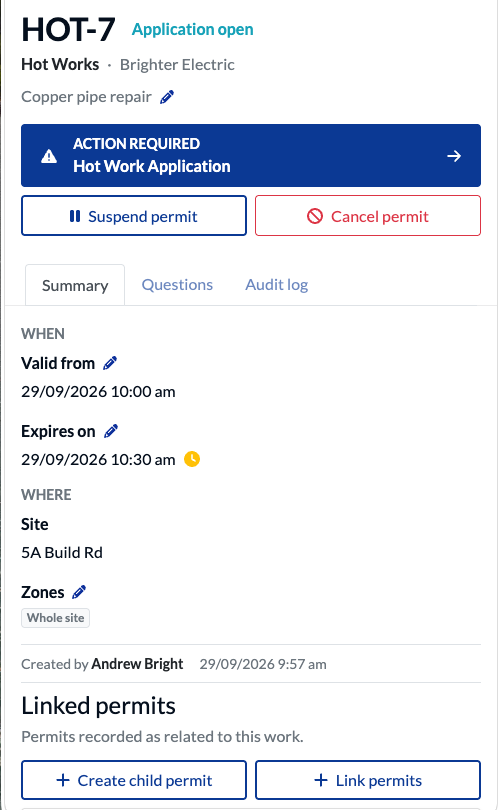
- Check its ID, site, zones, dates, status and current stage.
- Select Action required: [stage name].
- Complete the information, checks, attachments or approval requested.
- Save or submit the stage as prompted.
If you see View stage: [stage name], you can review the stage but cannot change or progress it. If neither action appears, there is no current stage action available to you.
Add people carrying out work
People can be added to a permit while the permit is being started, later from permit details using Add person, or when they select the permit during site check-in.
Supplier users can select people associated with their own supplier and may be able to add a new worker. They cannot search for people belonging to another supplier or the customer’s workforce. Authorised customer users may be able to add customer workers and workers from suppliers involved in the work.
If you cannot find someone, ask the permit holder or site contact to check how that person should be added.
Select a permit during check-in
When you check in to a site, select the supplier you are working for. You may then see permits associated with that supplier that are available at their current stage.
- Select each permit that applies to your work.
- Complete site check-in.
You can select more than one permit. Selecting a permit records your arrival against it and adds you to its People carrying out work list.
Permit selection is optional for site check-in. It is not an approval or a worker signature. If you do not select a permit that applies to your work, ask the permit holder or site manager how to be added and sign on before beginning that work.
If you expected to see a permit but cannot find it, ask the permit holder to check its supplier, site, current stage and validity dates.
Sign on to a permit
Worker sign-on records that you have reviewed and acknowledged a permit. It is separate from site check-in and from formal approval by an authorised approver.
A permit type can have one or more worker signing stages. Signing becomes available at the first of these stages the permit reaches. You sign once for that permit, unless a revision invalidates your signature and you need to sign again. You may already be listed as a worker before signing becomes available.
- Open the permit.
- Review its information.
- Find your name under People carrying out work.
- Select Tap to sign, or the sign-on control shown.
- Enter your signature and confirm.
You may receive a signing request. You can sign on your own device or use a shared phone or tablet presented by a supervisor.
Understand arrival and sign-on
| Status | Meaning |
|---|---|
| Arrived [time] | Your arrival against this permit was recorded through site check-in. |
| Not arrived | No arrival against this permit was recorded through site check-in. |
| Signed [date/time] | You have a valid worker sign-on. |
| Not signed | You do not currently have a valid worker sign-on. |
Arrival and sign-on are separate. Someone added directly to a permit may be Not arrived but Signed. Someone who selected a permit during check-in may be Arrived but Not signed.
Check the permit before work begins
A permit helps everyone understand what work is planned and which checks apply. A permit record, check-in or signature does not, by itself, confirm that the work is ready to begin.
Before starting, review the permit with the people involved and check:
- Work and location: The activity, site and zones match the work you will do.
- Dates: The permit is within its Valid from and Expires on period.
- Status and stage: The permit has reached the stage required for the work. Read its status and stage together.
- Approvals and sign-ons: The required approvals are complete, and workers have signed where required.
- Related work: Any linked permits and potential clashes have been reviewed with the permit holder.
- Work conditions: The information and controls recorded for the work still match conditions on site.
Some permit types have more than one approval stage. A worker sign-on does not replace those approvals, and an approval on one permit does not approve a linked permit.
If the work, location or conditions differ from the permit, pause and tell the permit holder or site contact. Follow your organisation’s process for reviewing the work and changing the permit. Do not work under a suspended, cancelled or expired permit.
Link related permits
Link permits when more than one permit or authority applies to the same work. For example, hot work may have a related working-at-heights permit.
Link an existing permit
- Open the permit and go to Linked permits.
- Select Link permits.
- Search for and select the related permit.
- Confirm the link.
You can also choose linked permits while starting a new permit. Where available, Create child permit starts a related child permit.
Links appear on both permit records. Linking does not approve, progress, sign or close either permit. Check each permit separately. If workers need to sign both a parent and child permit, signing one does not sign the other.
A potential clash may flag an unlinked permit at the same site with overlapping dates, times and zones. Treat it as a prompt to review the activities, not as proof that either permit is unsafe.
Manage changes and revisions
An authorised user may return a permit for correction or reconsideration. If workers have already signed, the revision may invalidate their sign-ons.
- Review the updated information and current stage.
- Check whether any worker sign-ons are no longer valid.
- Ask affected workers to review the changes.
- Have them sign again when sign-on becomes available.
A revision does not necessarily remove workers from the permit. The earlier sign-ons and any invalidation remain traceable in the Audit log.
Finish work and review the record
Complete the required close-out actions when the work is finished. Check whether linked permits also need separate action.
If work continues into another shift, make sure the incoming team knows what remains to be done and which permit details and site controls need checking. Follow your organisation’s handover process.
Use Audit log to review permit activity, including updates, stage changes, approvals, worker arrivals, sign-ons, revisions and linked-permit changes.
The permit register normally shows active permits, including suspended permits. Change its filters to find expired, cancelled or completed permits. If you export a permit as a PDF, check the generated document before relying on it as a complete record. Use the electronic permit and audit log to check the latest status.