Outlook add-in
The EVA Check-in for Outlook add-in allows your team to send pre-registration information, including an EVA Pass, to their external visitors,directly from Outlook – no need to log in to the EVA Check-in portal.
It’s a great way to standardise and streamline visitor check-ins, ensure health and safety compliance, and make the most of your EVA Check-in subscription.
In this article...
What can I use it for?
To set up the Outlook add-in, first decide how you are going to use it.
Send standard instructions or information to visitors, automatically
This might include health and safety notices, directions, or parking information.
Send an EVA Pass
EVA Pass is a reusable check-in pass for Apple Wallet or Google Pay that makes it fast and easy for visitors to check in at your EVA kiosk, and can also replace printed labels.
Collect pre-registration details
Custom check-in processes are flexible workflows designed to help you manage compliance, meet your health and safety obligations and collect information from your guests before they arrive.
The Outlook add-in will make it easy for all staff to send standard information, an EVA Pass and/or pre-registration process to their external visitors, as they set up a meeting in Outlook – great for a standardised approach to visitor management.
How to install EVA Check-in for Outlook
- Log in to the EVA Check-in portal and go to Account > Integrations > Pre-registration
- Click Enable and click How to install add-in for detailed instructions on installing the add-in to your Microsoft 365 account. You’ll need to be (or enlist the help of) a Microsoft 365 account admin to complete this step
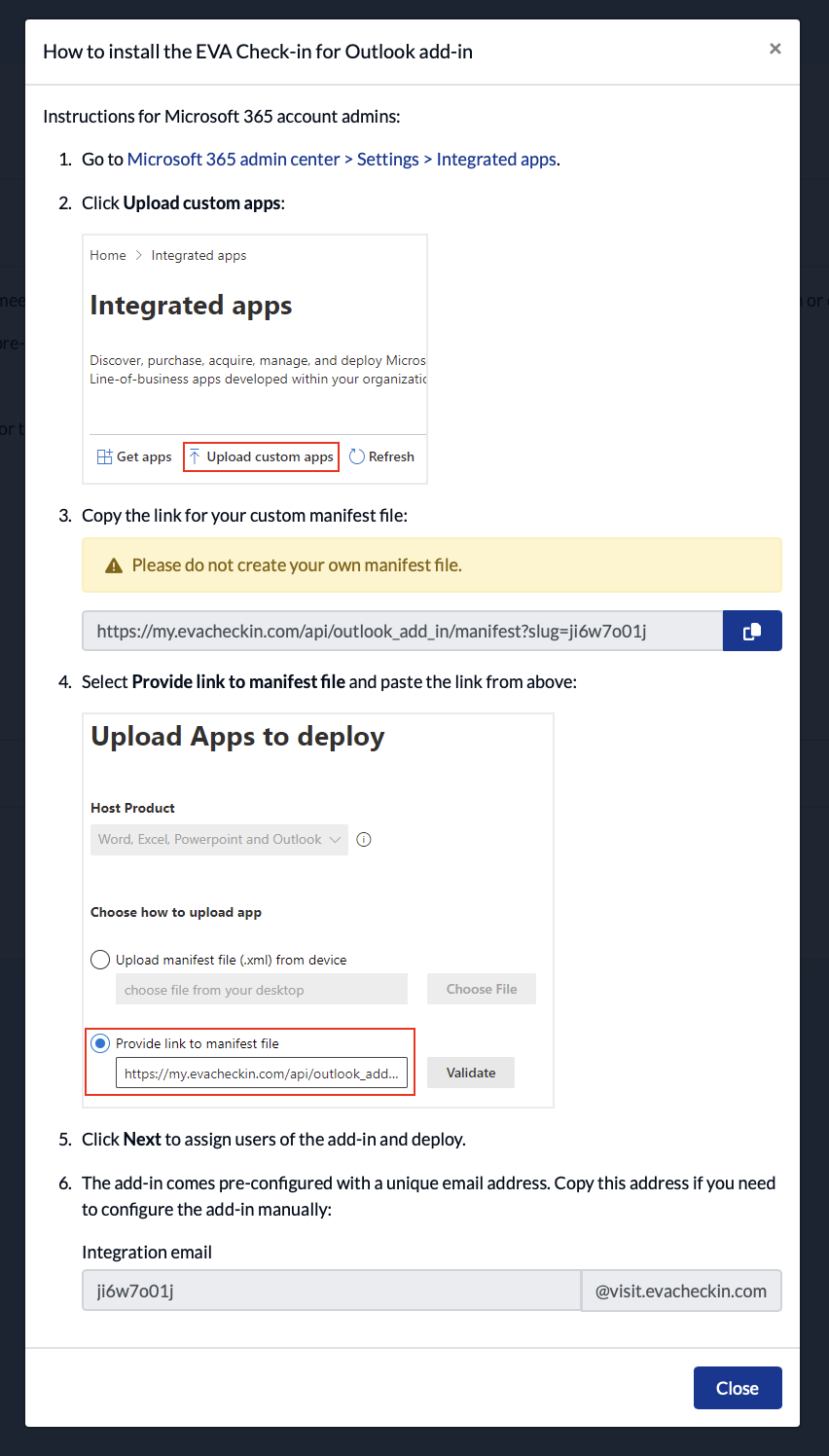
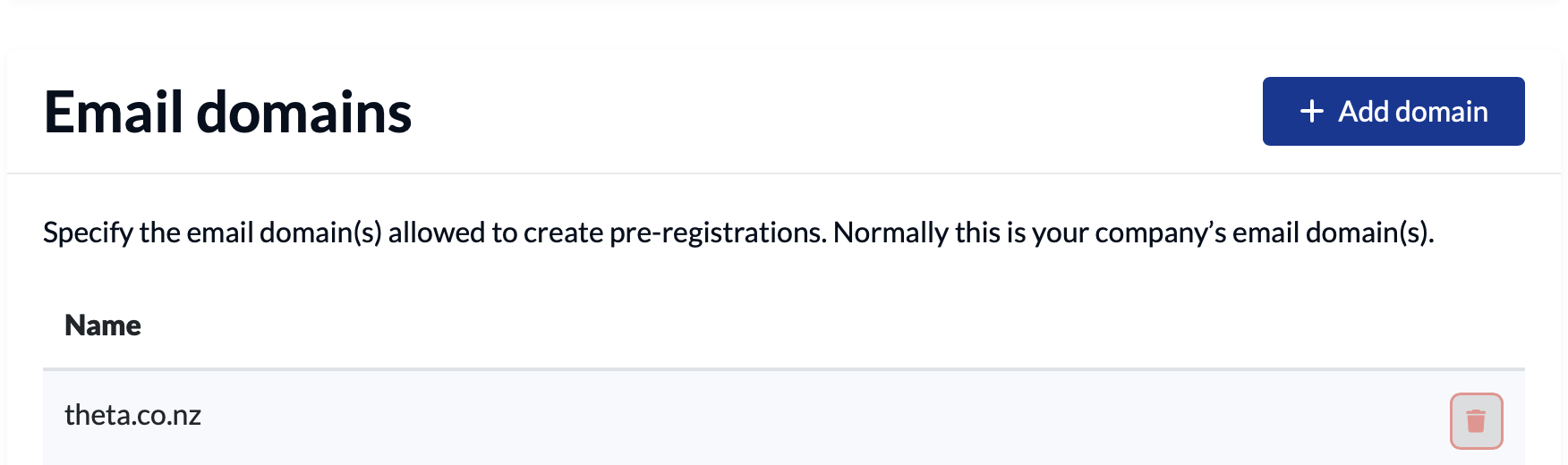
Note: Sometimes the deployment takes up to 24 hours. - Specify the email domain(s) allowed to create pre-registrations. This is normally your organisation’s email domain(s):
- Go to Site information > Options > Pre-registrations to set up your Outlook pre-registration settings per site:
- the default visitor type that will be assigned to guests registered via Outlook – eg “Visitor”
- a list of bookable meeting rooms for that site – so the add-in can automatically detect in-person meetings. This list should match the list of rooms you can book in Outlook. If your rooms follow a naming pattern, you can use this pattern here rather than add each room manually.
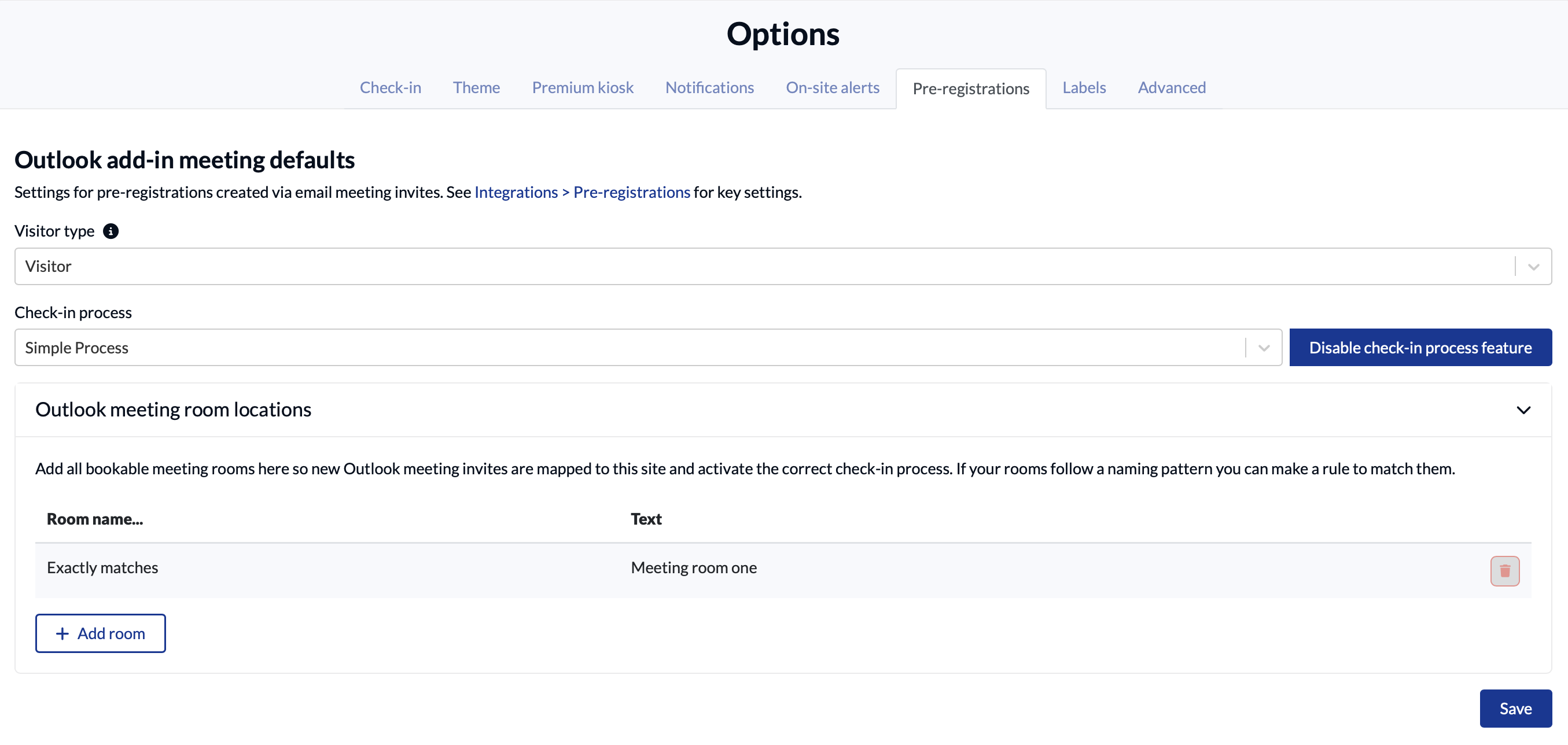
- On the same screen, optionally, add a check-in process, if you want to collect information, a declaration or waiver from your visitor ahead of time.
- Go to Site information > Options > Notification settings. Make sure a Pre-registration notification method is specified (Email, SMS, Teams or a combo).
- Check/edit the email and/or message that will be sent to your pre-registered visitor.
- Optionally enable EVA Passes to be sent with the pre-registration email. Go to Site information > EVA Pass
- Repeat steps 4-8 for every site where you want to enable Outlook pre-registration
- Tell your team about the new way of pre-registering visitors. We’ve included some ideas about what to include in an email to your team below.
Onboarding email template
copy/paste and adapt to suit your business
Possible subject lines
- New Outlook feature: streamline your visitors’ check-ins
- New Outlook feature: invite your visitors to pre-register when yousend a meeting invite
- New Outlook feature: make sure your visitors are aware of our health and safety requirements
- New Outlook feature: collect information from your visitors before they arrive for a meeting
Email content
Hi <Outlook user>
We’re rolling out a new Outlook add-in that works with our EVA Check-in system and streamlines the check-in process for external visitors, all from a calendar invite.
What are we using this for?
We use EVA Check-in to manage staff and visitor sign-ins, so we always know who’s here - great for health and safety.
EVA Check-in for Outlook is an easy way to streamline check-ins for your meeting guests before they arrive in reception, directly from a calendar invite. No extra apps or software to download.
<if using EVA Pass>
When you create a meeting, send an EVA Pass along with the invite. When your visitors arrive for their meeting, they just scan their pass to check in.
We also include important <health and safety / location> information ahead of time as part of this process – so you don’t have type it into your email.
<if using pre-registration processes>
Pre-registration lets us understand things like <visitor tech requirements /visitor catering requirements / visitor parking requirements > ahead of time.
How does it work?
Whenever you create an in-person (ie meeting room specified) meeting invite in Outlook (web or desktop version), you’ll get a prompt to send a pre-registration to anyone you’ve invited from outside <your organisation name>.
<Optionally, include a screenshot:>
If you choose to send an EVA pre-registration, your visitors will get an e-mail from EVA along with their meeting invite, <with an EVA Pass link and/or the opportunity to send some details ahead of time>. It’s as simple as that
Questions?
If you have any questions about this new Outlook add-in, please contact <EVA administrator>.