Renew certificates as a visitor
If the organisation you're visiting (as an employee, contractor, or other kind of visitor) uses certificates in EVA Check-in, you may be asked to renew a certificate before you come to site. Renewing a certificate helps keep your details current so you can complete check-in more easily.
This guide explains when certificate renewal applies, how to renew, and what to do if you cannot complete it.
In this article
Before you start
Certificate renewal applies to eligible process certificates. These are certificates created as part of a check-in or pre-arrival workflow.
If your organisation has set this up, EVA may ask you to renew a certificate when it is close to expiring or has expired.
How certificate renewal works
When renewal is available, EVA Check-in will send you to the certificate-related part of the workflow instead of making you complete the full process again.
This means you may only need to review or answer the screens linked to that certificate.
Your renewal experience depends on how the organisation has set up:
- the certificate
- the related process screens
- your permissions
For example, some screens may appear again, while others may stay pre-filled or hidden.
Renew in the EVA mobile app
You can renew in the EVA mobile app if your organisation has granted you the Certificate Renewal permission.
Renew in the app
- Open the EVA Check-in mobile app.
- Navigate to the Cerificates tab. Any certificates available for renewal will have the Renew button. This button is visible from 14 days before the certificate expires.
- Select Renew.
- Complete the certificate steps shown in the app.
- Submit your renewal.
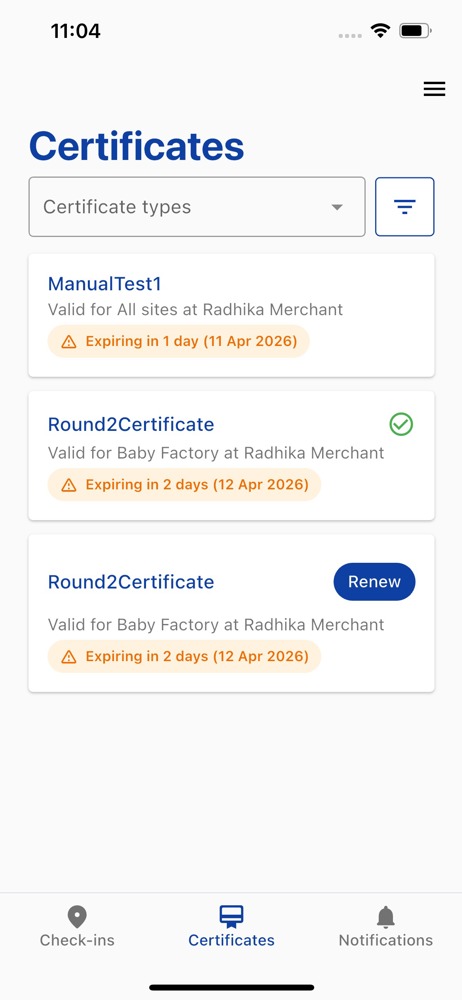
If you cannot see the Renew button
You may need to complete a one-time device verification before the Renew button appears.
The organisation must also:
- enable visitor renewal for that certificate
- grant you the Certificate Renewal permission
If you still cannot see Renew, it may be too early to renew. For more information, contact the site or organisation you are visiting.
Renew from a link or email
If you do not have in-app renewal permission, you may still be able to renew a certificate using a link sent by the organisation you are visiting.
Renew from a message
- Open the renewal email, SMS, Teams message, or other notification you receive.
- Select the renewal link.
- Complete the renewal steps in your browser.
- Submit your renewal.
What you may see during renewal
Certificate renewal does not always look the same for every visitor.
Depending on how the certificate and process have been set up, you may see:
- one or more certificate-related screens
- fields that are already completed
- questions you need to answer again
- steps that are skipped because they are already covered by a valid certificate
This is expected behaviour.
Troubleshooting
I cannot renew my certificate
This can happen if:
- your certificate is not close to expiry yet
- your certificate is not set up for visitor renewal
- your certificate is a manual certificate
- you do not have the required in-app permission
- your organisation needs to review part of your renewal
- you need to complete device verification first
If you are not sure which applies, contact the organisation you're visiting.
I cannot see the Renew button in the app
Check that:
- you are using the current version of the EVA Check-in mobile app
- you have completed any required device verification
- your organisation has granted you the Certificate Renewal permission
If the button still does not appear, use the renewal link you were sent, or contact the site or organisation for help.
Why do I have to answer some questions again?
Your organisation decides which screens are included in the certificate and how those screens behave during renewal.
That means some information may be reused, while other questions may need to be answered again.
I renewed my certificate, but I still need help
If your renewal has not updated as expected, contact the site or organisation that requested it. They can check your certificate status and any follow-up steps.