Single Sign On (SSO) with Microsoft login
EVA Check-in supports single sign-on using Microsoft Work accounts.
By using Microsoft accounts for login your staff can use existing credentials. You can also apply multi-factor authentication (MFA). If a user leaves your organization, disabling their Microsoft work account will automatically prevent them from accessing EVA Check-in.
Integration Requirements:
- Ensure you have the necessary administrator permissions for both EVA Check-in and Microsoft Office 365.
- The first user to login may be prompted to request or approve (depending on permissions) EVA Check-in as an app that can use Microsoft login in your tenant. If approval is required an Azure tenant admin will need to approve.
To set up Single Sign-On (SSO) with Microsoft, you need to follow these steps:
-
Enable Microsoft Login sign in method: Go to the Account > Users section and navigate to the Sign-in method tab. Turn on Microsoft login. Optionally turn off using built-in user name and passwords.
-
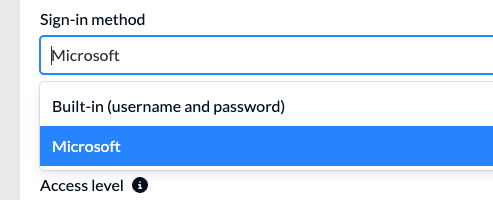
Create a user: When adding a new user or updating an existing user, select their sign-in method as "Microsoft "
-
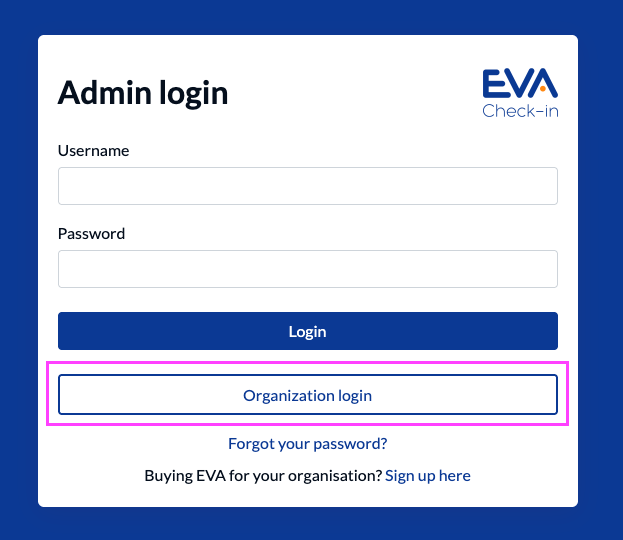
- Login: Users that have Microsoft option selected must use the Organization login option:
-
- Then select Microsoft
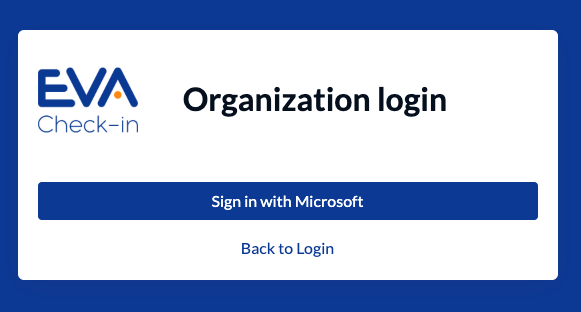
- The user will be redirected to the Microsoft login page. Note: the first user logging in may be prompted to request approval for EVA Check-in to use Microsoft login