Transfer on-site forms to Procore Documents
First, find your Procore project Documents tool and copy the email address.
-
Navigate to the Documents tool.
-
Click the Configure Settings
 icon.
icon. -
The email address is listed under Import Options, in the 'To Email Files To This Project' section.

Note: Any files attached to an email sent to this address will be added to the 'Emailed Documents' folder.
Next, in EVA Check-In, set up your Notification address in Overview > Processes and forms > On-site forms/info > select your form
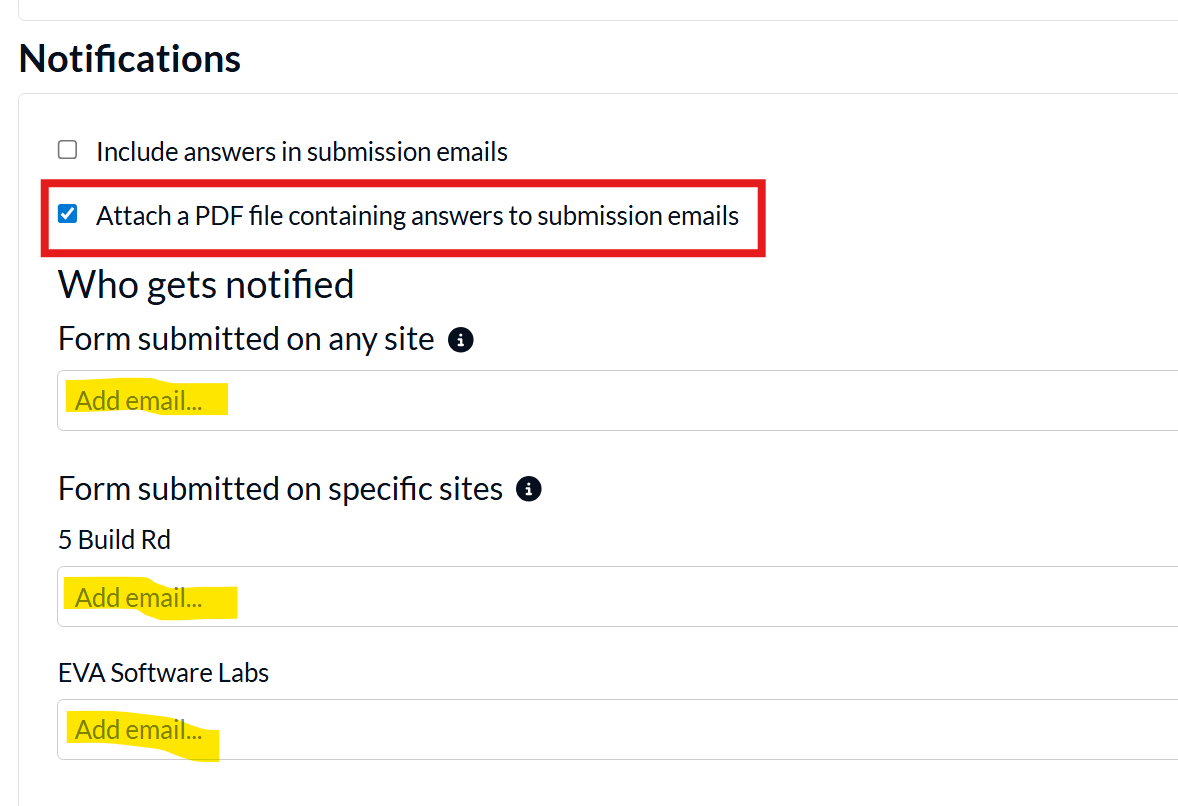
That is all the setup done. When you submit that form a copy of the PDF report will be sent to Procore, almost immediately.
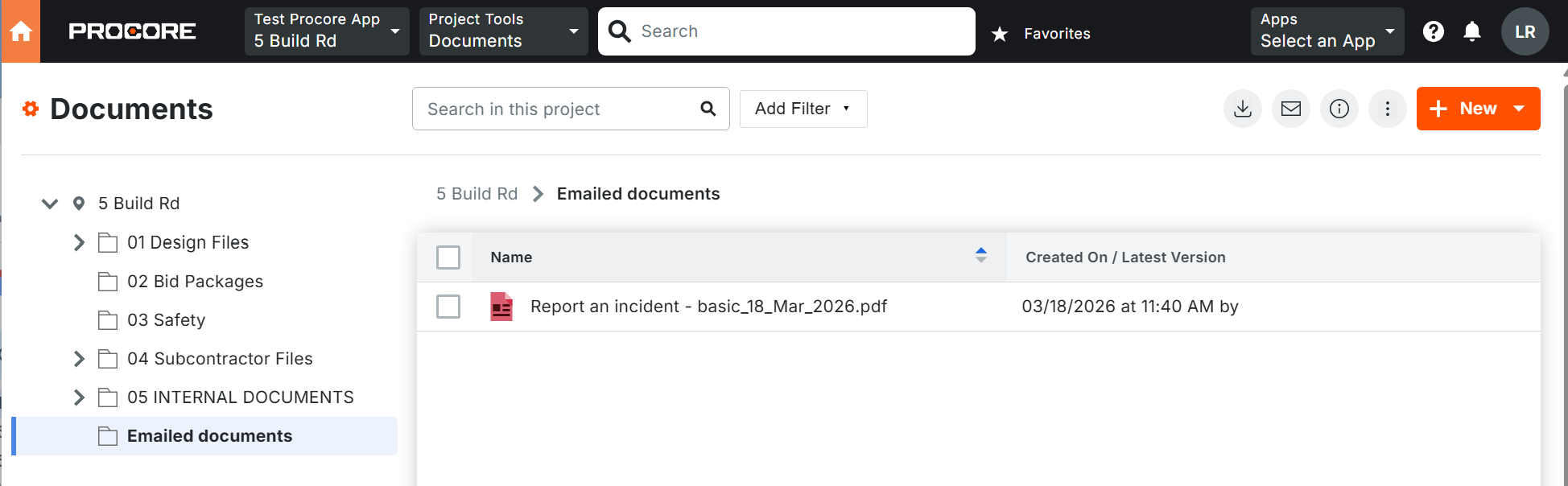
It will appear in the Emailed documents folder. From there you can move it to your appropriate project folder.
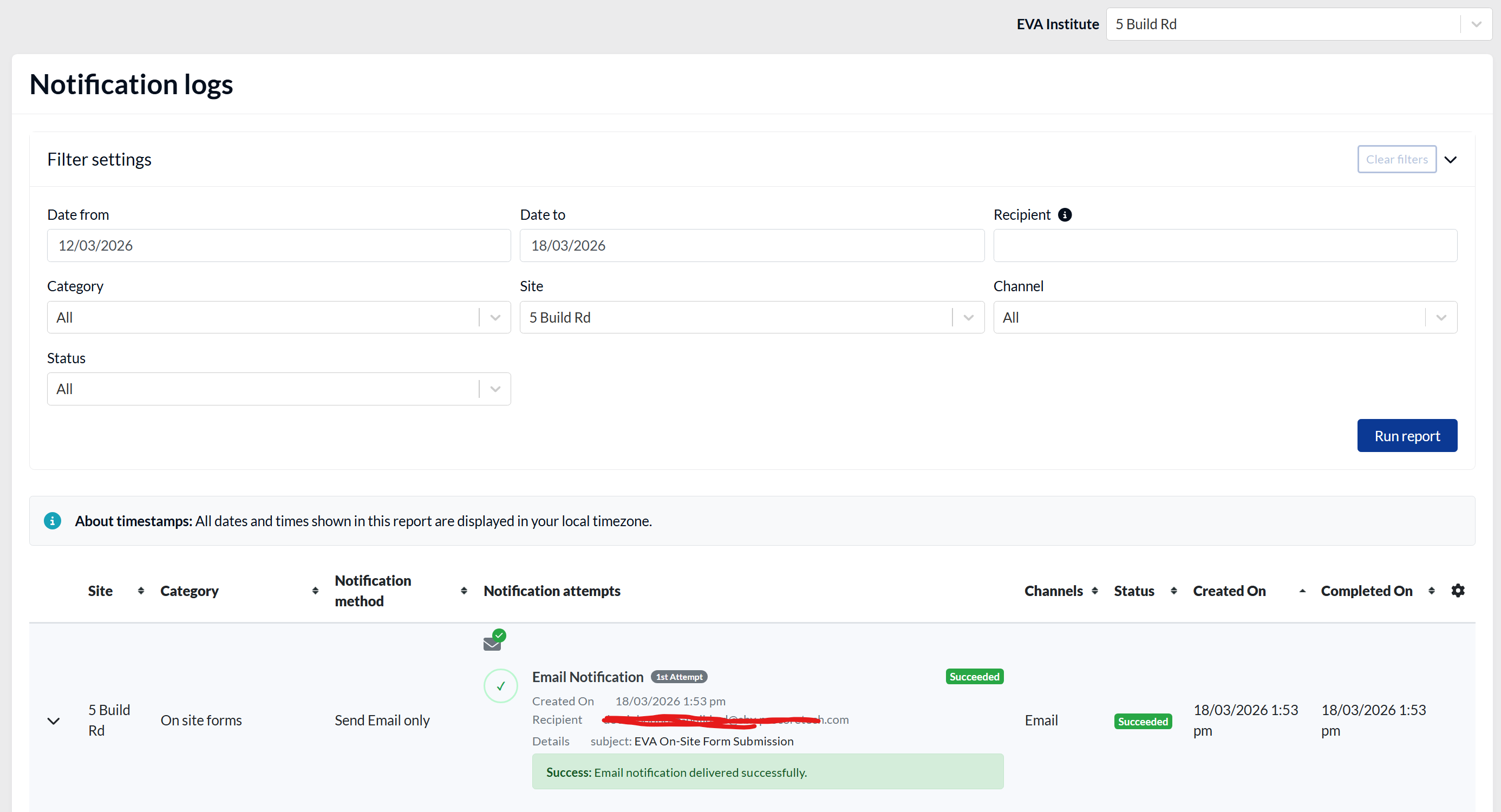
You can see evidence the submission has been sent in the EVA Check-In Notification logs.