Authenticated visitors
You can grant some visitors special permissions that give access to additional features in the mobile app - eg to start an evacuation.
In this article...
Special permissions/features
Evacuation Warden
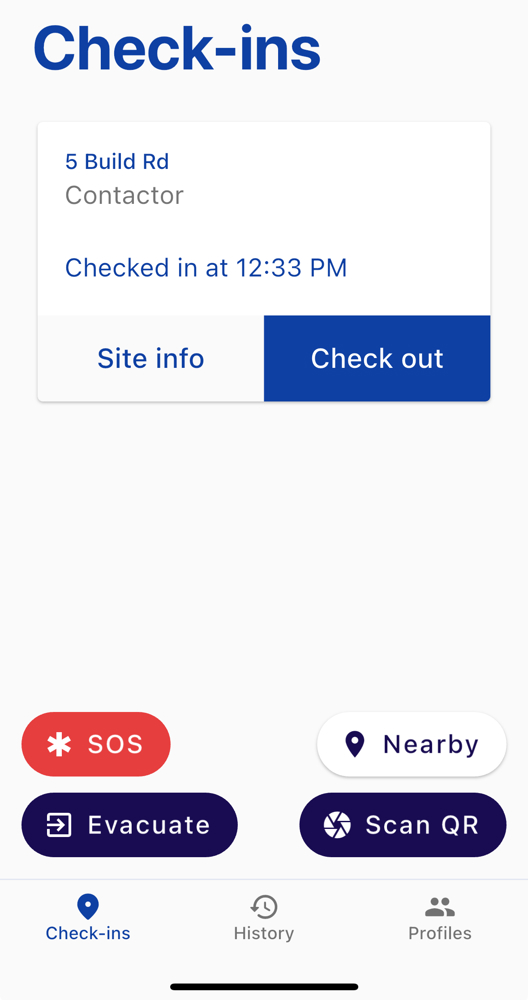
Visitors with this permission can start an evacuation via the Evacuate button in the mobile app. This button is only visible to people who have this permission.
Who is here
Visitors with this permission can view the people who are currently checked in. This button is only visible to people who have this permission.
SOS Initiation
Visitors with this permission can trigger an SOS via the SOS button in the mobile app. This button is only visible to people who have this permission.
How to grant special permissions
Prerequisites
A visitor must have checked in to a site in your organisation. Once they have done this they will have a visitor profile.
- You can check this via Overview > Visitor profiles
- No visitor profile? You can ask the person to check in, use manual check in to check them in, or complete a pre-registration for them.
To use the special permissions, they must also be using the latest version of the EVA Check-in mobile app, as that's where the buttons appear.
Granting permissions - to individuals
- Find the person's visitor profile in the EVA Check-in portal, via Overview > Visitor profiles
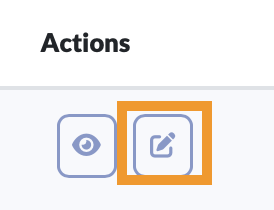
- Click edit
- Navigate to the Permissions tab
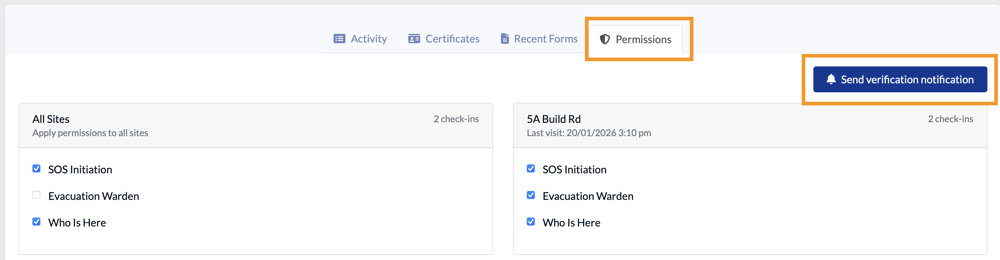
- You can apply the permissions to all sites (first card), or just specific sites
- You can also send a device verification notification (see below) from this screen (coming soon)
Granting permissions - by visitor type
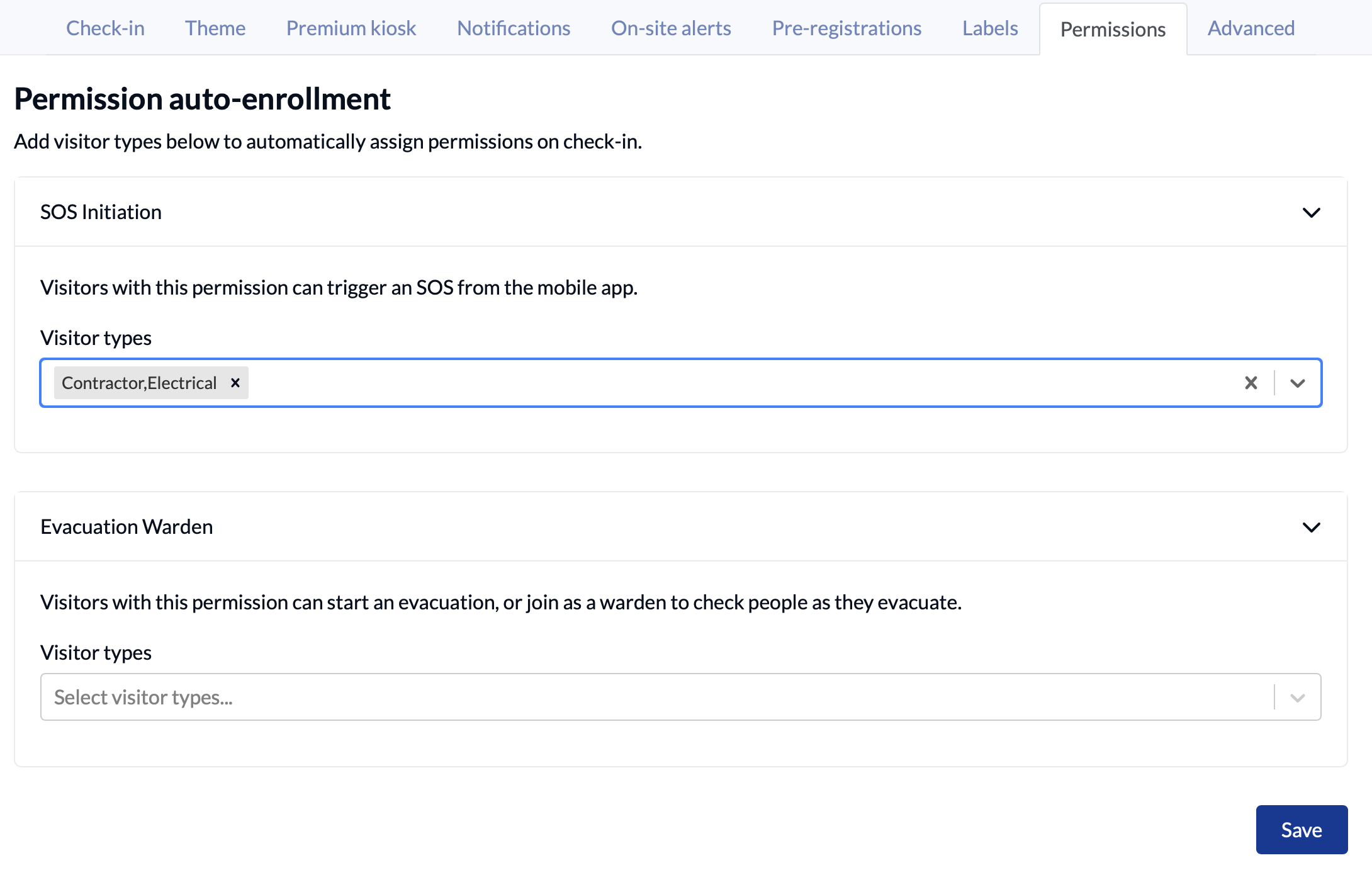
If you prefer, you can automatically assign permissions by visitor type. For example, you may want all of your electrical contractors to be able to trigger an SOS from the mobile app.
To do this:
- Go to Site information > Options > Permissions
- Select the visitor type you would like to automatically grant permission to
- Click Save
Important: Auto-enrolment applies permissions automatically when people check in with that visitor type.
Use this carefully for permissions such as Evacuation Warden and Who is here, which are usually intended for a smaller group of trusted users.
If you later remove an auto-enrolment setting, this does not bulk remove permissions that were already granted to existing people. Existing permissions must be reviewed and removed from each person’s visitor profile as needed.
Device verification
For special permissions to work, the visitor must complete a one-time verification step to confirm their identity and device.
Device verification method
- A device verification notification is sent to the visitor via Teams notification or SMS or e-mail (in that order, depending on available methods).
- It is sent to the visitor when they next check in, if the device they are checking in from is not already verified.
- It can also be sent manually to an individual by the EVA Admin (coming soon).
- If the permission is based on visitor type, the visitor will be prompted to verify their device when they first check in with that visitor type
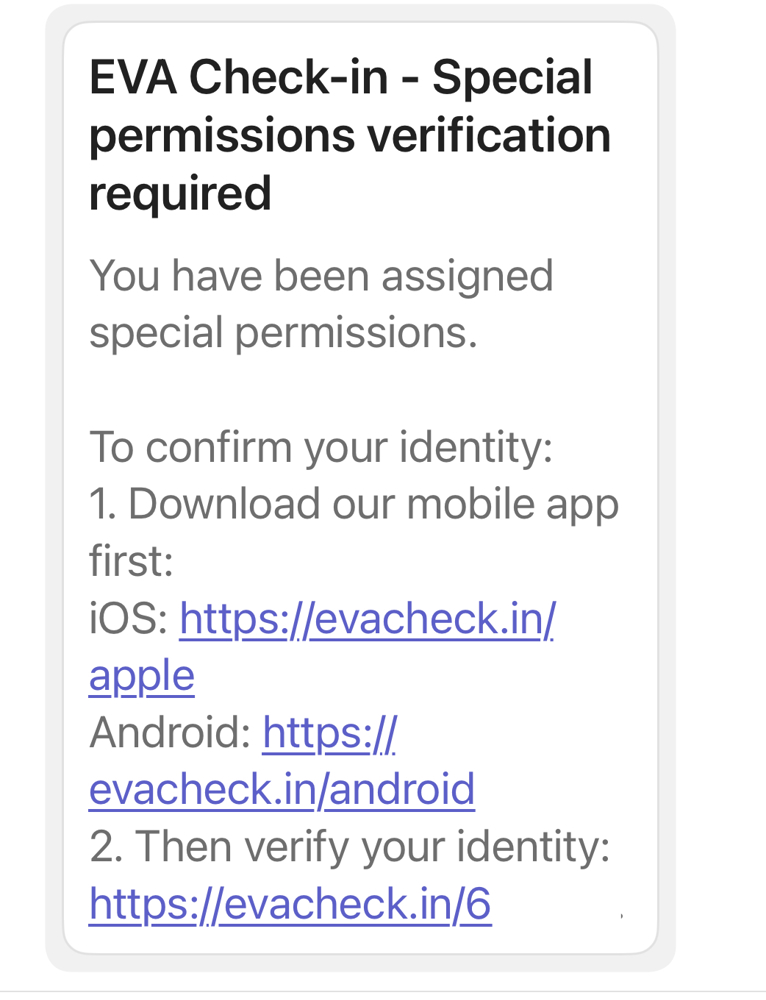
Device verification message
The visitor will be prompted to:
- Download the EVA Check-in app, if they haven't already
- Verify their identity by clicking a link
Example notification: Teams notification