Manage certificates and renewals as an admin
Certificates in EVA Check-in help you track whether a person has completed a required process, induction, or other step. As an admin, you can create and manage certificate types, allow visitors to renew eligible certificates, track renewals, and support people whose renewal needs follow-up.
This guide covers the main admin tasks for certificates and certificate renewals.
In this article
- Certificate types
- Set up a process certificate
- Allow visitors to renew a certificate
- Grant in-app renewal permission
- How visitor renewal notifications are sent
- Track certificate renewals
- Support renewals that need attention
- Create and assign manual certificates
- Edit certificate expiry dates
- Export certified people
- FAQ
Certificate types
EVA supports 2 types of certificates:
Process certificates
Process certificates are created automatically when a person completes the relevant part of a check-in or pre-arrival process.
Use process certificates when you want to:
- collect answers as part of a workflow
- remember those answers for future visits
- apply an expiry date
- support visitor renewal, where configured
Manual certificates
Manual certificates are added by an admin to record something completed outside EVA, such as an in-person induction or training course.
Use manual certificates when you want to keep a record in EVA without requiring the person to complete that step through an EVA workflow.
Certificate renewals
Only process certificates support visitor self-renewal.
Manual certificates do not support visitor self-renewal, but expiry can be tracked by an admin
Set up a process certificate
Use a process certificate when you want EVA to issue a certificate automatically from a check-in or pre-arrival process.
Before you start
Make sure you already have a check-in or pre-arrival process set up.
Create the certificate
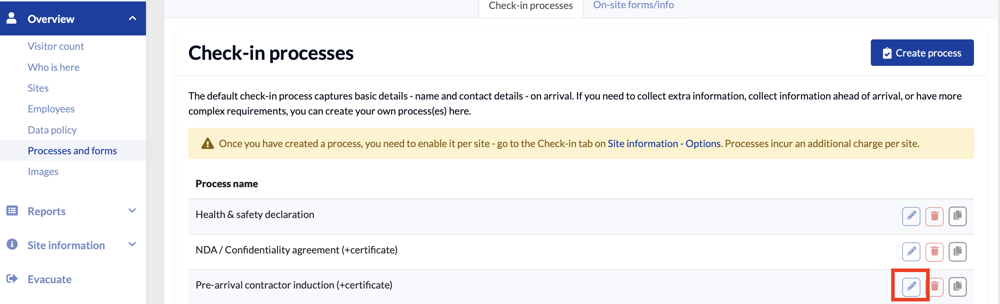
- Go to Overview > Check-in processes.
- Open the process you want to use.
- Select Edit.
- Scroll to the bottom of the process.
- Select Add certificate.
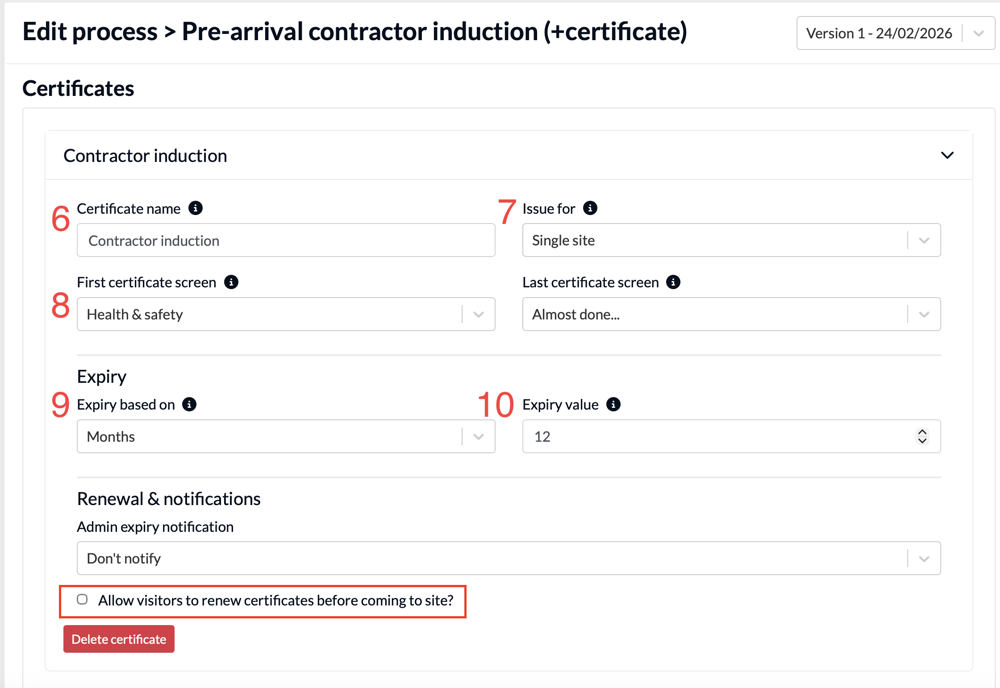
- Enter a certificate name.
- Choose whether the certificate applies to:
- one site, or
- all sites that use the process
- Select the first and last screen covered by the certificate (which can be the same if just one)
- Choose the expiry method:
- use a field, if the certificate expires on a specific date
- use a time period, if the certificate expires after a set number of days, weeks, months, or years
- Enter the expiry value.
- Select Save.
Allow visitors to renew a certificate
If you want visitors to be able to renew a process certificate before they come to site, you must enable visitor renewal on that certificate.
Enable visitor renewal
- Go to Overview > Check-in processes.
- Open the relevant process.
- Edit the certificate settings.
- Turn on Allow visitor to renew certificate before coming to site (shown above)
- Save your changes.
If this setting is off, visitors cannot use the certificate renewal flow.
Grant in-app renewal permission
Visitors with the correct permission can renew eligible certificates in the EVA mobile app.
Visitors without that permission can still renew through a browser or link-based flow, if renewal has been enabled.
Grant the permission
- Go to Overview > Visitor profiles.
- Find the visitor.
- Update their permissions for the relevant site or sites.
- Grant the Certificate Renewal permission.
- Save your changes.
Note about device verification
Some visitors may need to complete a one-time device verification before the Renew button appears in the EVA mobile app. Learn more.
If a visitor cannot see Renew, check:
- that the certificate is a process certificate
- that visitor renewal is enabled for that certificate
- that the visitor has the Certificate Renewal permission
- that the visitor is using a current version of the EVA mobile app
How visitor renewal notifications are sent
Visitor renewal notifications are sent automatically when renewal notifications are enabled for that certificate type, and the certificates:
- are close to expiring or have expired
- have visitor renewal notifications turned on
- have not already had that notification sent
Visitor renewal - timings
Provided the above criteria are met:
- Visitor renewal notifications are automatically sent 3 days in advance of the certificate expiry date
- Visitors will start to see the renew button in their mobile app 14 days before their certificate expires and can renew at that point
- They can also renew on receipt of a renewal reminder manually sent by an admin
Track certificate renewals
You can track certificate renewal activity in 2 main places.
Use the Certified people page
Go to Certificates > Certified people.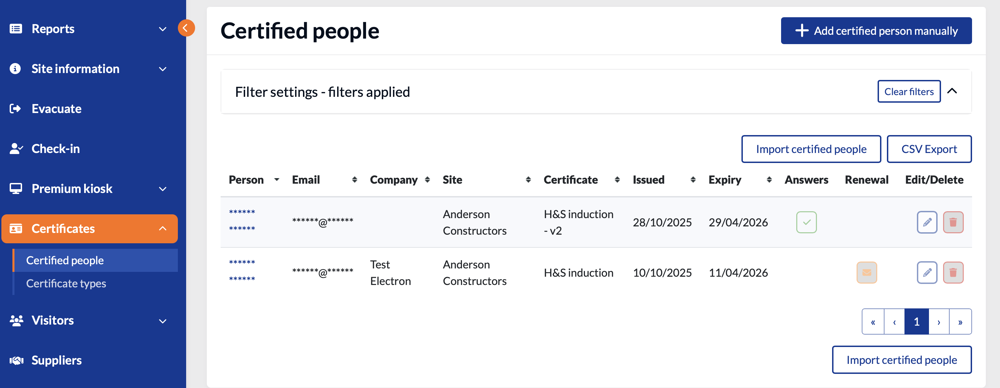
Use this page to:
- view current and expired certificates
- review certificate history
- send a certificate renewal notification manually - click the mail icon in the Renewal column
Find everyone who has completed a site induction
If you need a register of everyone who has completed a site induction for a particular site, go to Certificates > Certified people.
Unlike sign-in reports, the Certified people page lists people by the inductions they have completed. This means each person appears once per induction, rather than once per visit.
- Open the filters at the top of the page.
- Set Site to the site you want.
- Set Certificate to the relevant site induction.
- Change Expiry state from Current to All.
By default, the page only shows people whose induction is still valid. If you want a full register, including expired inductions, you need to change Expiry state to All.
To save or share the list, select CSV Export.
Tip: If someone is missing from the list, check whether the Expiry state filter is still set to Current.
Use Visitor profiles
Go to Overview > Visitor profiles.
Use visitor profiles to:
- search for a person
- review their certificate records
- check certificate status and related details
This can be useful when you are supporting a specific visitor and want to see their wider activity as well as their certificate history. You can also send a renewal notification from this screen.
Understand certificate history
When a certificate is renewed, EVA creates a new certificate record rather than updating the old one.
That means a person may have:
- an older expired certificate
- a newer current certificate
This is expected behaviour.
Support renewals that need attention
Some renewals may need employee follow-up.
If a renewal submission results in an amber or red outcome, EVA can notify the relevant employee so they can review and resolve it.
What happens next
The employee can follow the link in the notification and update the visit information as needed.
This workflow helps where the visitor has submitted a renewal, but their updated answers still require review before the visit can proceed.
Set up employee notifications
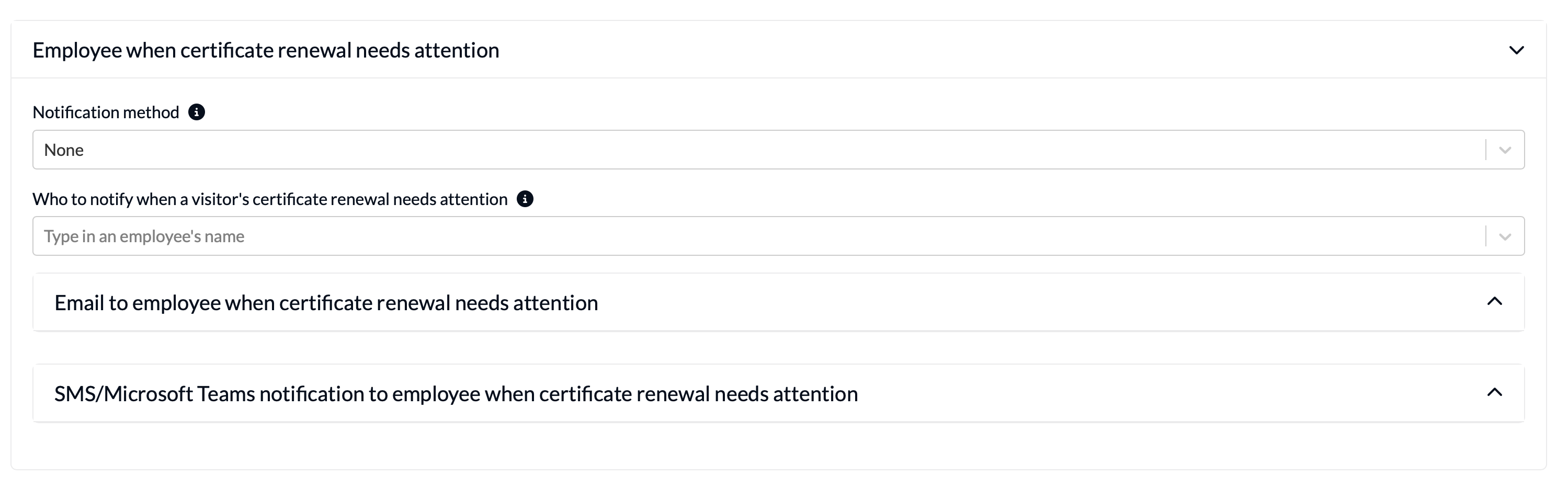
To set up employees to be notified if a certificate renewal results in an amber or red status (i.e. needs review/attention) -
- Go to Site information > Options > Notifications
- Scroll down to the Employee when certificate renewal needs attention section
- Select a notification method, who to notify and update the message content to suit
Create and assign manual certificates
Manual certificates are useful when something was completed outside EVA and you still want to record it against a person.
Create a manual certificate type
- Go to Certificates > Certificate types.
- Select + Add manual certificate type.
- Enter a certificate type name.
- Choose whether it applies to:
- a site, or
- the whole organisation
- Save the certificate type.
Assign a manual certificate to a person
- Go to Certificates > Certified people.
- Select + Add certified person manually.
- Search for and select the person.
- Select the certificate type.
- Select the relevant site or sites.
- Enter the expiry details, if needed.
- Save the record.
Important
Manual certificates do not support visitor self-renewal.
Edit certificate expiry dates
Certificate expiry dates do not usually change after a certificate has been issued, unless a staff member updates them.
You can change the expiry date when
- a staff member manually edits the issued certificate in the portal, or
- the certificate expiry is based on a date field in the check-in process, and a staff member updates that date field in the visit information
Edit a certificate manually
- Go to Certificates > Certified people.
- Find the relevant person and certificate.
- Open the certificate record.
- Edit the expiry date.
- Save your changes.
Export certified people
You can export a CSV list of certified people from EVA.
- Go to Certificates > Certified people.
- Apply any filters you need.
- Select the CSV export option.
Tip
The Expiry filter often defaults to Current, so expired certificates may be hidden.
If you need to see older records, change the filter to show:
- All, or
- Expired, if available
FAQ
Why can I see more than one certificate for the same person?
This usually happens when a person has renewed a certificate. EVA creates a new certificate record for the renewal instead of updating the old one.
Why can’t I see an older certificate?
The Certified people list may be filtered to show only current certificates. Change the Expiry filter to All or Expired.
Why can’t the visitor renew in the app?
Check that:
- the certificate is a process certificate
- visitor renewal is enabled for that certificate
- the visitor has the Certificate Renewal permission
- the visitor has completed any required device verification
- the visitor is using a current version of the EVA mobile app
Why didn’t the certificate update when it was renewed?
Renewal creates a new certificate record. It does not overwrite the previous certificate.
Can visitors renew manual certificates?
No. Manual certificates do not support visitor self-renewal.