Notification logs
Notifications are messages sent to visitors, administrators, hosts or others from EVA Check-in to inform the recipient about an action in EVA Check-In.
Notifications can be sent by email, SMS, or as push notifications to mobiles or Microsoft Teams.
There are many triggers for sending notifications within EVA Check-in. Notification logs can show why, when and how they have been sent.
In this article
Accessing your notification logs
Find notification logs via the Reports menu - https://my.evacheckin.com/reports/notification_logs
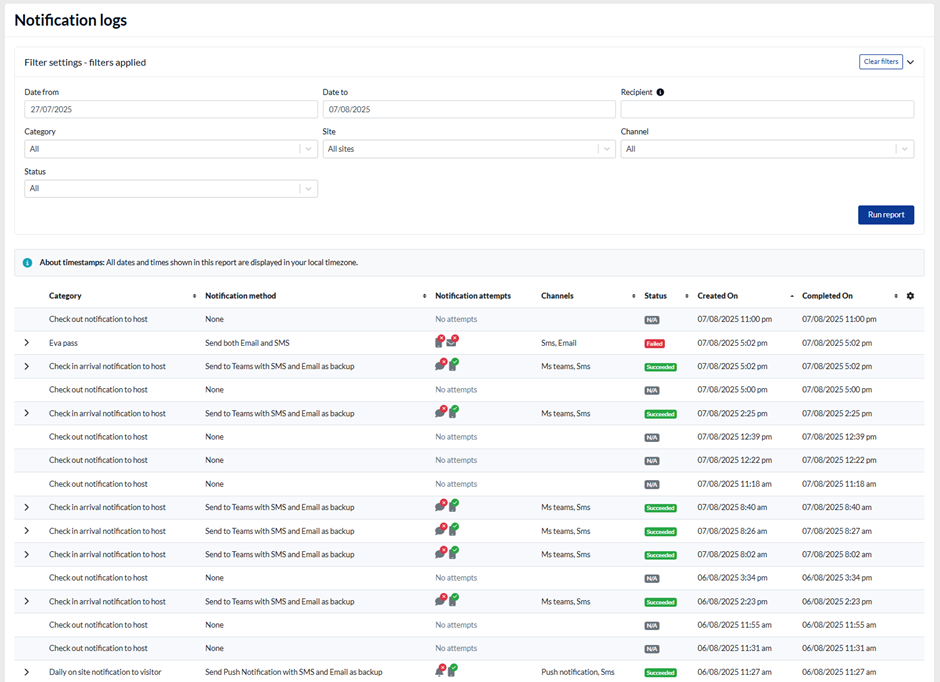
Notification history is accessible for up to 14 days. You can filter the logs by:
- Recipient: Email and phone numbers
- Category: the type of notification
- Site
- Channel
- Status
- Dates
Triggers for notifications
Notifications may be triggered by various actions, including:
- Booking confirmations
- Arrival notifications for check-ins
- Customer onboarding updates
- On-site form submissions
- Alerts for people still on-site
- Supplier reminders
- Visitor count alerts
Use the "Category" filter to filter by trigger in your notification logs.
Our team is frequently expanding the list of triggers.
Methods of notification / channel
Notifications can be sent by:
- SMS
- Push notifications (through our mobile app)
- Microsoft Teams Notification
- Various combinations and back up options
- None, if no methods are enabled
Back up options are methods to use if the previous method failed or isn't configured. For example, if there is no phone number provided, but an email address is provided, then email is used.
Notification delivery status
Each method's success is indicated by:
- Green Tick: Successful delivery
SMS and email succeeded
- Red Cross: Delivery failure
Send to Teams failed
- N/A: No methods enabled
Overall delivery statuses
- Succeeded: All configured methods were delivered
- Failed: All attempts failed to deliver
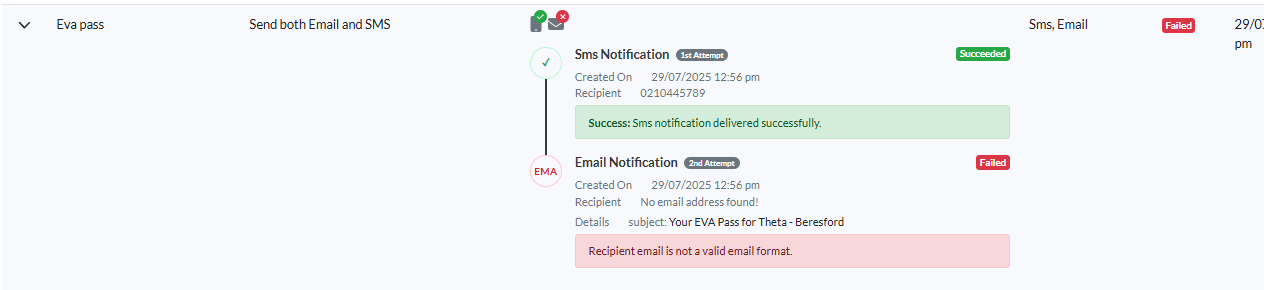
Backup methods may be used, and any successful delivery results in an overall success. The exception is 'Send both email and SMS', both methods must succeed to get Succeeded. See example below.
Viewing notification details
For more detailed information, click on the > icon to view the notification history.

For instance, if an SMS is successfully sent but an email fails due to an incorrect address format, the status will appear as "Failed" if both were configured.