Remove unsolicited personal information in EVA Check-in
This article explains how EVA Check-in supports the correction, removal, and scheduled destruction of unsolicited personal information.
If a visitor provides personal information that your organisation does not want to keep, you can usually edit the visit record to remove or overwrite that information. You can also use EVA’s data retention settings to permanently delete older visitor data after a defined period.
Quick links
When you may want to remove or update visitor information
Use this process when:
- a visitor enters extra personal information during check-in
- a visitor adds information in the wrong field
- your organisation decides some check-in data should not be kept
- you want older visitor data removed automatically after a set period
Remove or overwrite information from a visit record
If the unwanted information is attached to a visitor’s visit, you can usually edit that record and remove the data.
Edit the visit details
- Find the visit details using reporting - e.g. Activity log
- Click on the person's name
- Find the field that contains the unwanted personal information.
- Remove the text or replace it with the correct information.
- Save the record.
What this does
This lets your organisation stop displaying or storing personal information that was entered unnecessarily in editable fields.
What this does not do
This does not remove the entire visit record from EVA. The visit record remains in the system, but the personal data linked to that visit can usually be changed or removed.
Some personal details are hidden by default
In reporting views, sensitive details are hidden by default (e.g., 1)
To display these details, an EVA Check-in user needs to click the eye icon (2)

These clicks are logged for audit purposes.
Set a data retention policy
If you want EVA to remove older visitor data automatically, set a retention period in the data policy settings.
Update the default data policy
- In the EVA admin portal, go to Account settings > Data policy.
- In Default data policy, find Days to retain visitor data.
- Enter the number of days you want visitor data to be kept.
- Select Save.
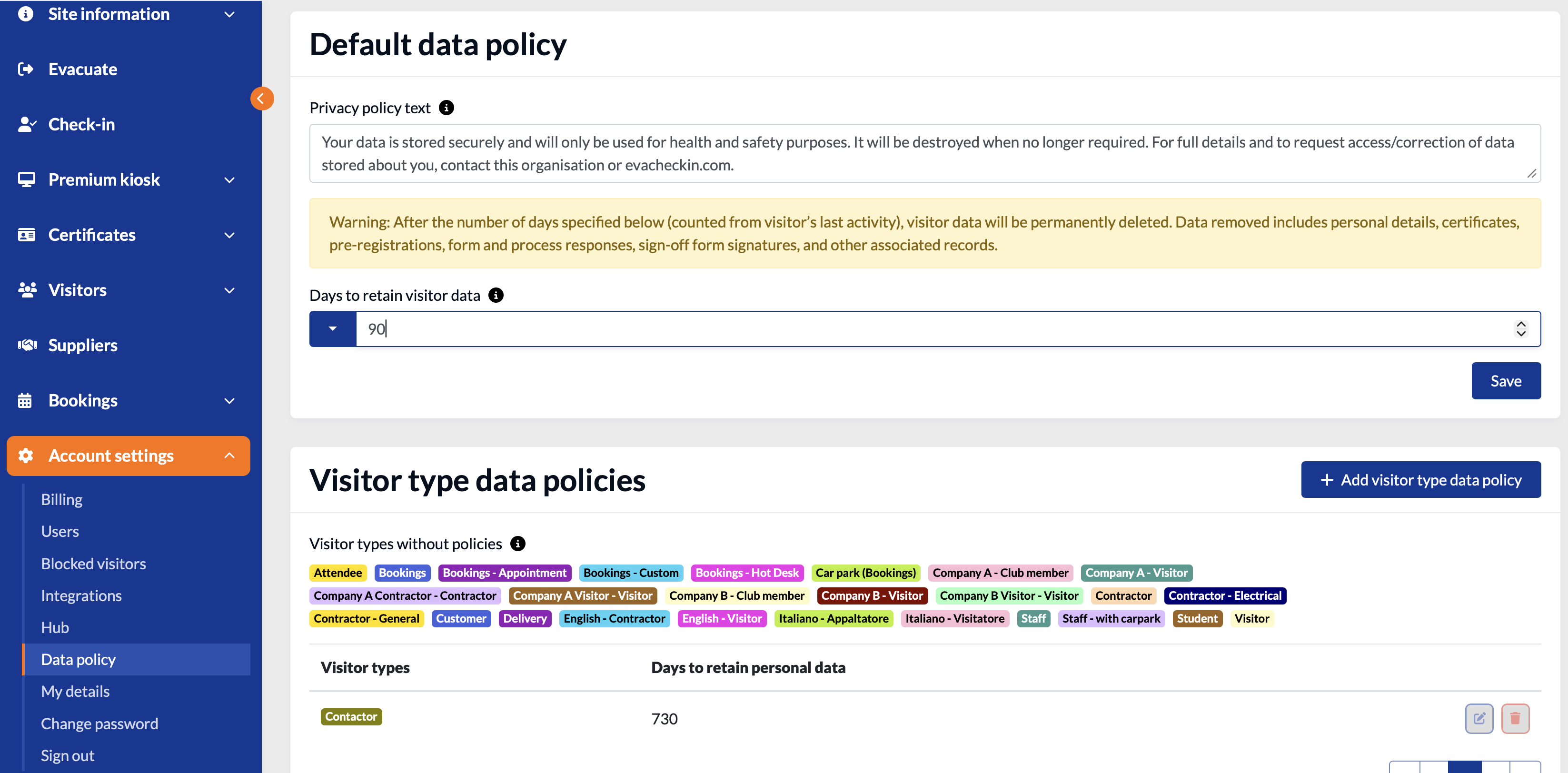
This setting applies the default retention period for visitor data unless a visitor type has its own policy.
Add or update the privacy policy text
You can also update the Privacy policy text shown in the same area to explain how your organisation handles visitor data.
Use a visitor type data policy
If different visitor types need different retention periods, create a visitor type data policy.
- Go to Account settings > Data policy.
- In Visitor type data policies, select Add visitor type data policy.
- Choose the relevant visitor type.
- Enter the Days to retain personal data.
- Select Save.
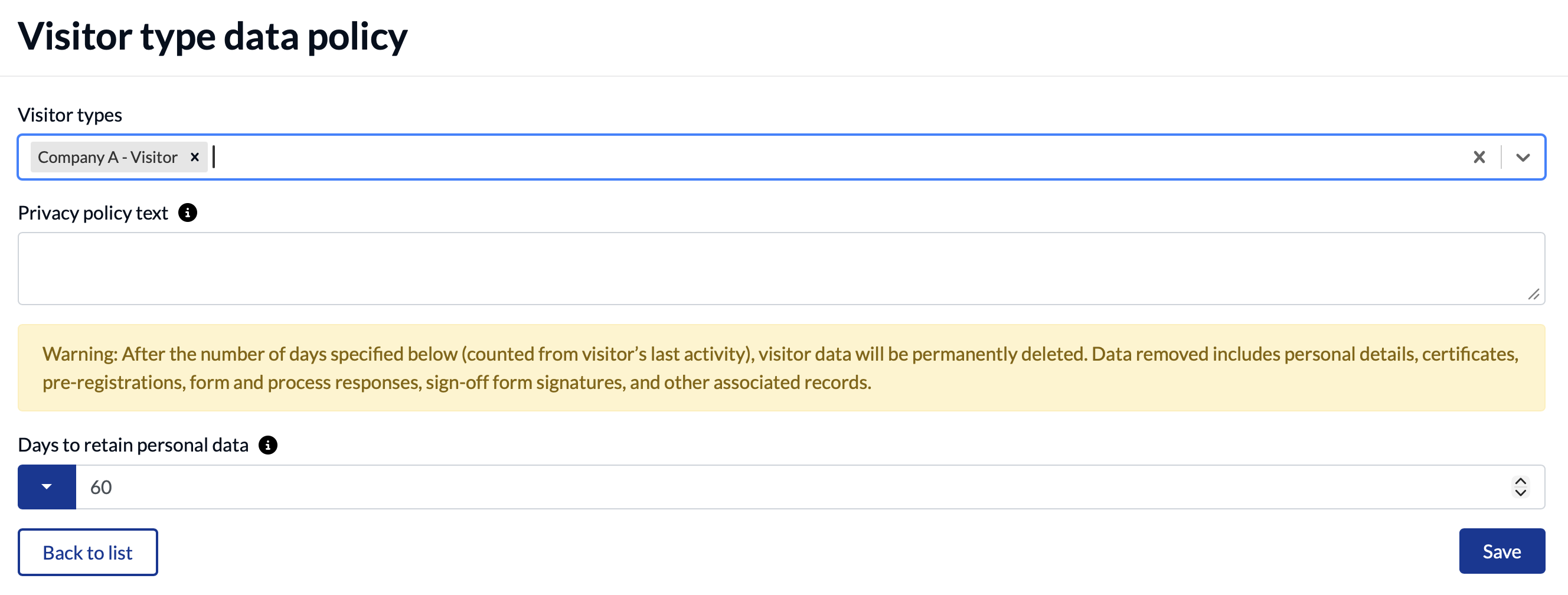
This is useful if, for example, contractors, visitors, and staff need different retention periods.
What gets removed by retention policies
The data policy screen warns that after the number of days specified, counted from the visitor’s last activity, visitor data will be permanently deleted.
This includes:
- personal details
- certificates
- pre-registrations
- form and process responses
- sign-off form signatures
- other associated records
Important to know
- Retention is based on the visitor’s last activity.
- Retention settings provide a scheduled way to permanently remove older data.
- If a visitor type has its own policy, that policy can differ from the default policy.