Signable on-site forms
In this article...
On-site forms & info can be used to share essential workplace information, processes and forms with everyone on site, and make sure that info is available after check-in.
But what if that info changes, and you want to make sure that people have seen the latest version?
Super-charge your on-site forms with signature capture and daily versions:
- Verify that people have viewed and signed your forms
- Designate who needs to sign a form – by role or name
- Make copies – on your desktop device or even on your mobile device, when you need a new form, fast. Ideal for daily briefings
Sign off forms – key concepts
- On-site form – this is the starting point and the first thing to create. Your on-site form will be a template for the form or briefing that you want your workers to sign.
- Submission - a new form version, which becomes, for example, your daily briefing, is created by submitting/filling in your on-site form. In EVA this then becomes a Sign-off form.
- Signatures (sign-off) can then be collected on that version.
Example daily briefing sign-off
In this example, a daily briefing is used to update workers on a construction site each morning, and is available once they check in. Safety information is highlighted and may change on the site each day.
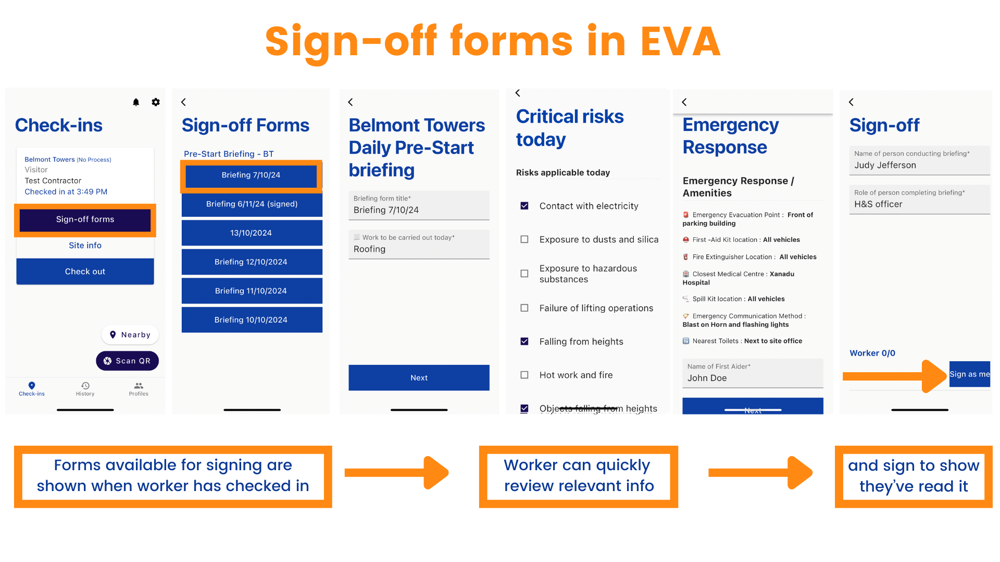
On the admin side, the health & safety officer can view who has signed off on each day’s briefing:

And the next day, the site supervisor can quickly create that day’s version.
Depending on the complexity and security of the form, new versions for signing can be created:
- In the EVA Check-in portal – best for more complex, multi-step forms/safety briefings
- In the EVA Check-in mobile app – best for simple forms/briefings and those that don’t change much day-to-day – see example below.
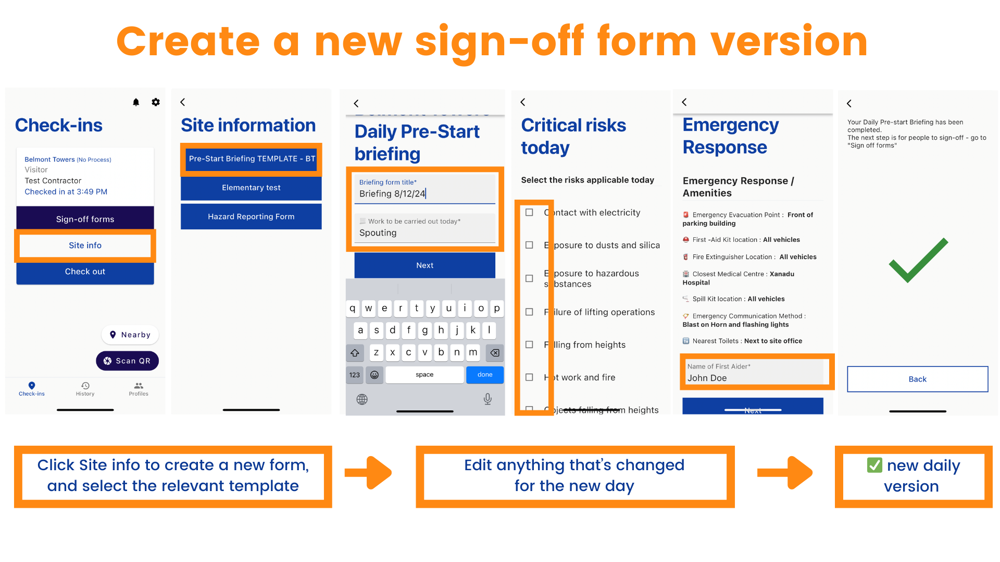
How to create this example
Step one: create on-site form
Start from scratch or with one of our templates. This article is a guide to setting up an on-site form. 
Step two: publish your form to a site

Test your form
Test that your form is available when you check-in to the site and works as expected. You will see your forms in Site info on your mobile app once you have checked-in.
Note: Publishing your form to a site incurs a charge for using forms on this site. You can use multiple forms on a site for a single charge.
Step three: turn an on-site form into a signable form template.

- Make the form signable by checking the Is signable checkbox in Edit form/info.
- You need to add at least one Role – the designation of checked-in people who can sign the form. This can be used to show who needs to sign a form, eg Safety Officer, Fire Warden, Supervisor
- Add a Sign-off form title - the title of the form
- Prevent visitors from making form submissions Check this to prevent visitors from creating new instances of this form in the mobile app.
- Display copy and close buttons to visitors – Select this option if you’re ok with others making new versions of the form from the EVA Check-in mobile app.
Pros & cons
This is good for making new versions quickly, but you should not select it if creating the daily briefing (or whatever sign-off form you’re creating) is locked down to a specific individual or role.
If selected, in the app you (and all visitors who can see the form) will see two buttons after the signing section:
Use Copy form to select a previous version of a sign-off form.
Step four: Create a version of your form to be signed by checked-in visitors
Now that you have created a signable form template you can create versions. For example, a daily version of your pre-start briefing.
Option one: desktop
Use Reports > Sign-off forms to create a new version of the form.
- Click fill in form

- Select:

-
- Site the form will apply to
- The form to use
- Typically, this would be your name. Start typing (minimum of 3 characters) to select the name. IMPORTANT: you need to have been checked in to the relevant site at some point.
- When working in the portal, you don’t have a visitor type, as you are not checked in. But visitor type is required for form fills, so you need to add one here. IMPORTANT: Make sure that the role you select here matches the visibility settings of the form. Don’t select a role here that can’t view the form.
- Complete the Sign-off form (see our example below)


You can optionally choose people who have previously checked into the site to show as signatories in the form.
Your completed form is now ready to be viewed by checked-in visitors and signed.
Option two: mobile
How to sign forms on your phone
- Go to the EVA Check-in app on your phone.
- Check-in to the site to see available Sign-off forms.

In this example only ‘Briefing 10/10/2024’ is available for signing.
- Swipe through each form screen to read. On the final screen you see a button to Sign as me.

- Sign the form

- Tap Sign. You will then see the list of forms, indicating if they are signed by you

Reviewing sign-off forms
Sign-off forms are available to everyone checking into a site via the EVA Check-in app.
You can see the status of your signable forms in Reports > Sign-off forms
You can see
- Whether the form is open (ie available for signing) or closed
- The number of signatures on a form
- Click open form to see details and signatories

Closing forms
Close the form for capturing signatures from the administration portal or the EVA Check-in app. This will remove it from the mobile app.
For example, close it every day, once everyone on site who has attended the pre-start briefing has signed it.
You can still view the information and signatures in the portal. If necessary the forms can be re-opened for signing.
Information and support
Need help creating sign-off forms to suit your workflows? Contact us, we're happy to help.