Blocked visitors
Add blocked visitors to be notified when unwanted visitors check in at your sites.
There are two steps to setting up checks for blocked visitors on check-in:
- Create a list of blocked visitors
- Add a blocked visitor check to your check in process/es
Create a list of blocked visitors
Roles
This function is restricted to the following user roles:
- Customer administrator
- Receptionist
- Operations
How to add a blocked visitor
- Navigate to Account settings > Blocked visitors
- Click Add new blocked visitor

- Enter the required details. Note that the names, phone and e-mail are used for matching a check-in with someone from the block list, so take care to enter their details correctly.
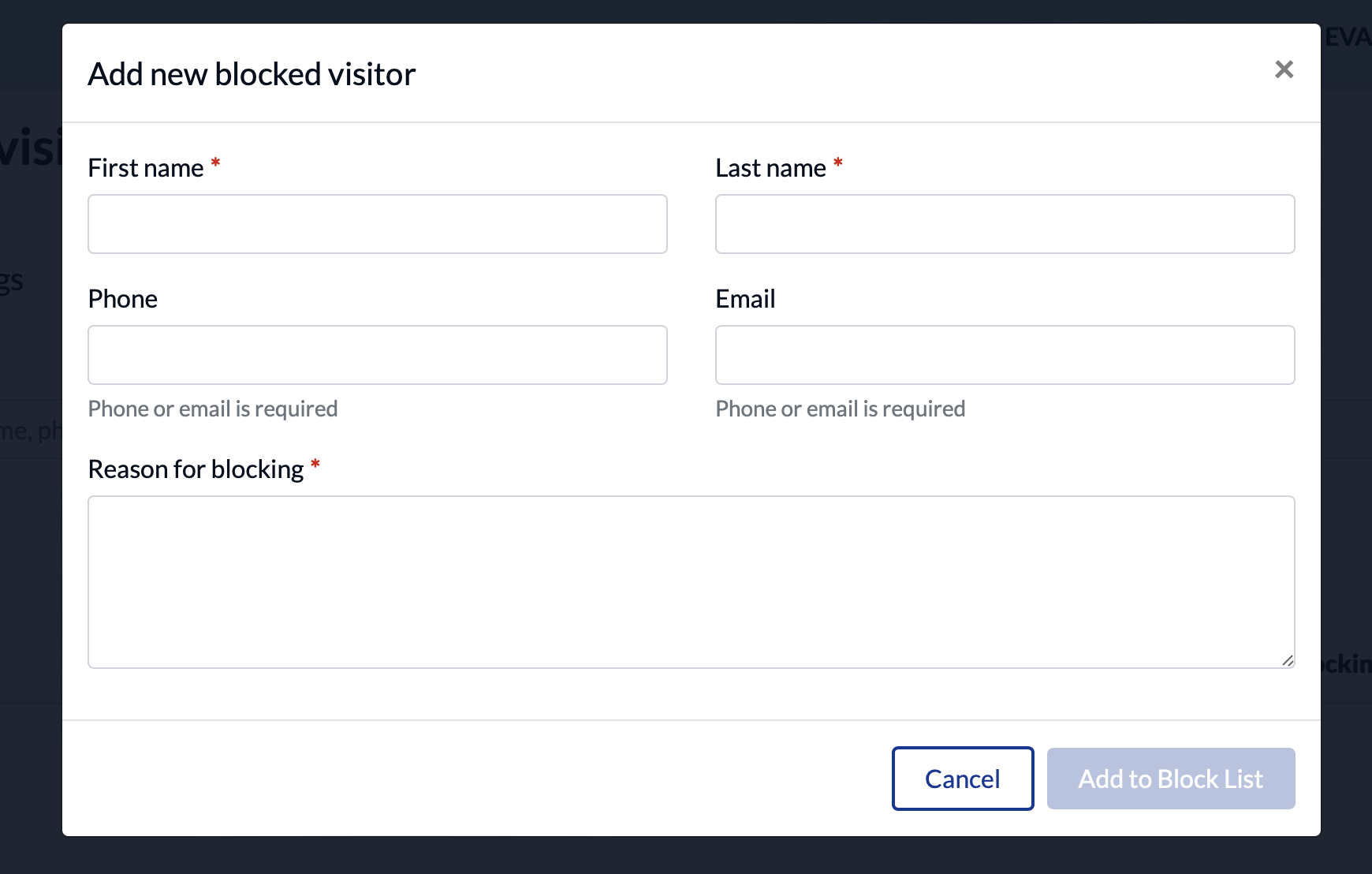
- Click Add to block list
Add a blocked visitor check to your check in process/es
Note: It's only possible to check for blocked visitors using a custom check-in process. We can't check for blocked visitors on standard check-in.
- Navigate to Overview > Processes and forms and select edit on the check-in process you want to add a blocked visitor check to.
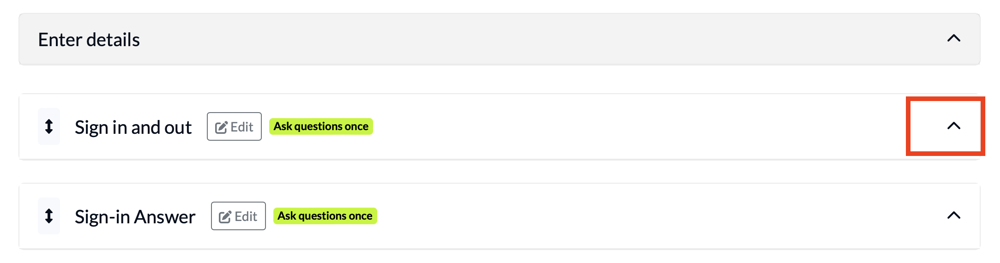
- Within that process, find the first of your custom screens, and click the arrow to expand.
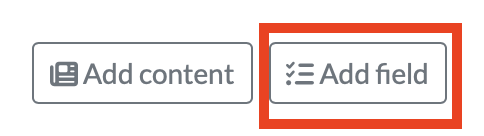
- Click Add field at the bottom of that section
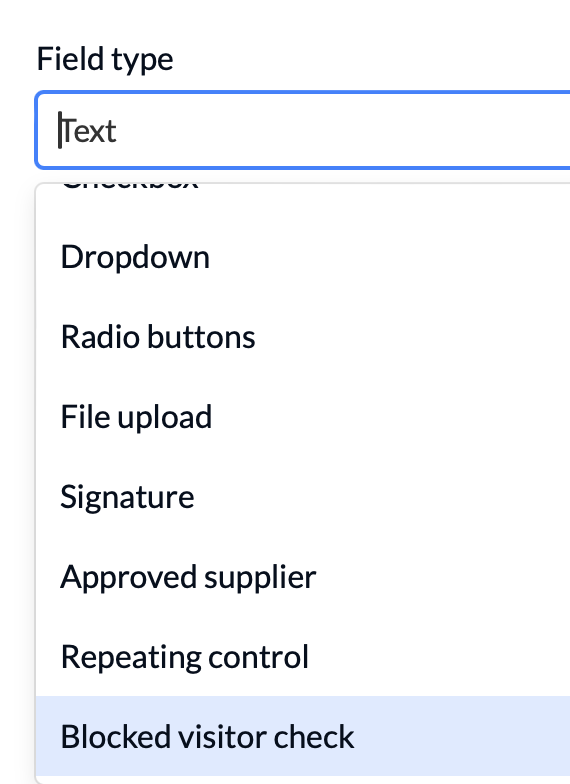
- Select Blocked visitor check field type
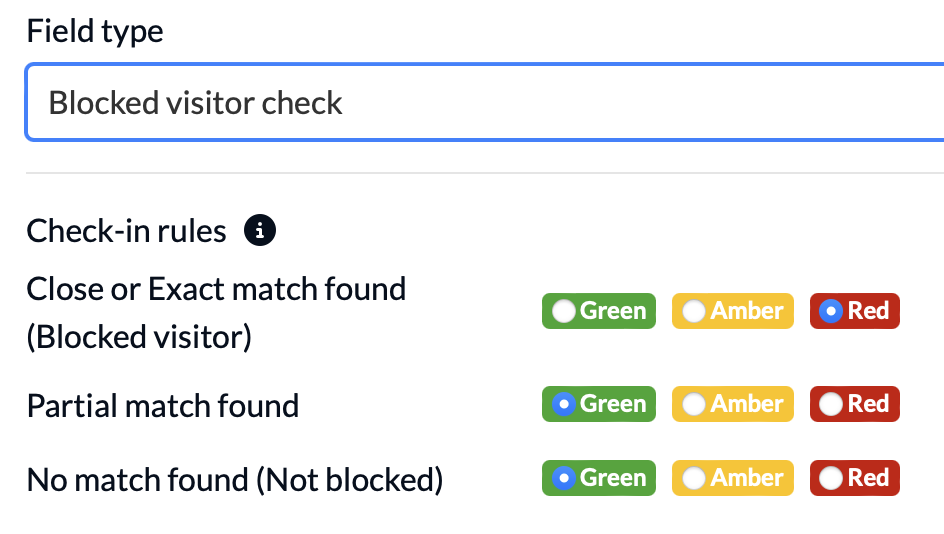
- Make any required adjustments to the Check-in rules. The defaults are as shown.
- Click close, and Save your process.
- If you want to include a blocked visitor check across multiple processes, you will need to repeat the above steps for each process.
What happens when a visitor on your block list checks in
If you have added a blocked visitor check to your check-in process, when a visitor checks in using that process, we'll run a check to make sure the visitor isn't on your block list.
We look for matches across first name, last name, phone number and e-mail.
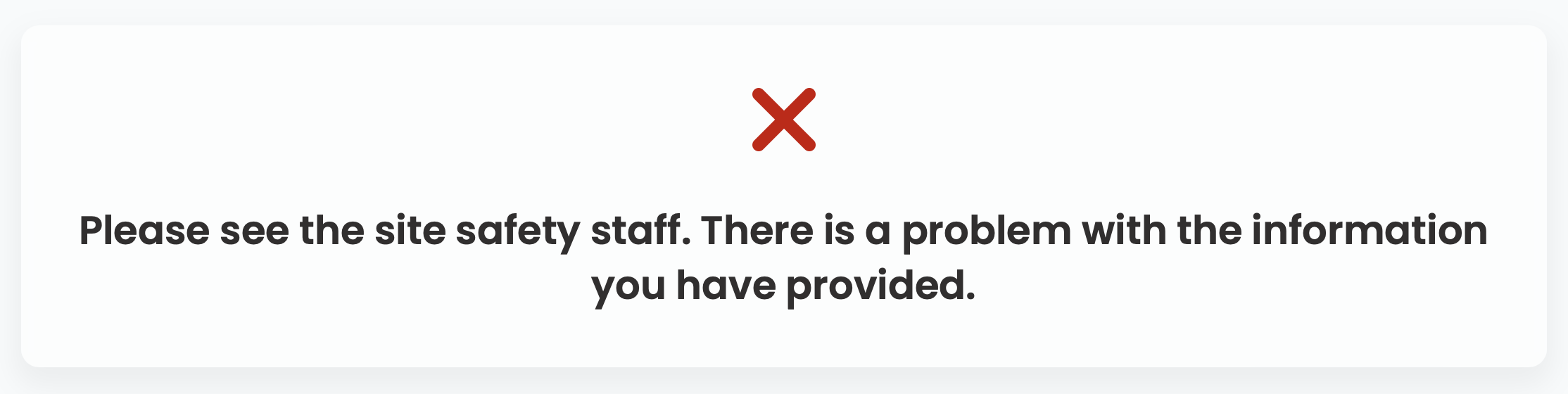
If we consider the visitor to be a close or exact match to a visitor on your block list, we will send a notification to the host and to site admins, and present the red check-in status message to the visitor, e.g.:
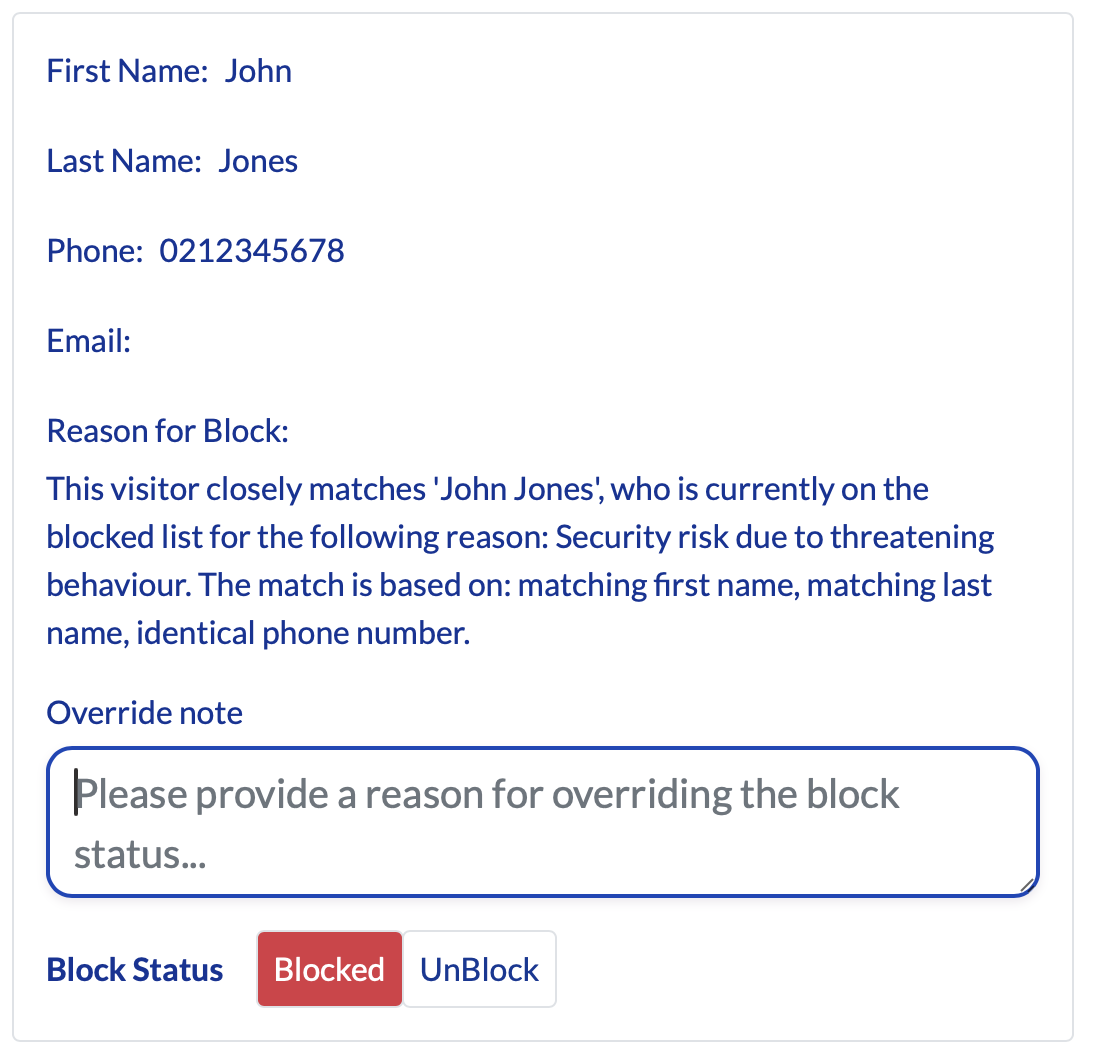
From their notification, the admin can review the blocked visitor, and, if they wish, override the block (with a reason):
The visitor is still considered checked in, but with a red status. This means you have a record of the check-in attempt, for reporting purposes.