Notifications in EVA Check-in
Use notifications in EVA Check-in to:
- Let the host know when a visitor has arrived
- Let the visitor and host know when a pre-registration has been set-up
- Let the site manager know when someone is still on-site at a specified time
In this article...
Notifications vs alerts
- Alerts are messages sent to checked-in visitors on-site.
- Any message sent before check-in, or to a host, receptionist, site manager or other designated (non-visitor) party, is a notification.
Learn more about on-site alerts.
Types of notification
EVA Check-in can send different notifications at different stages of a visit. Each notification type has its own trigger, recipients, delivery methods, and message template.
Pre-registration notifications
These notifications are sent when a visit is booked or pre-registered.
Use them to:
- confirm the booking to the visitor
- let the host know a visitor is expected
- share key visit details before arrival
Typical recipients include the visitor, the host, or both.
Arrival notifications
These notifications are sent when a visitor checks in on site.
Use them to:
- let the selected host know their visitor has arrived
- notify reception or another fallback contact if no host is selected
- send a reusable EVA Pass to the visitor
Typical recipients include the host, reception team, or visitor.
Checkout notifications
These notifications are sent when a visitor checks out.
Use them to:
- let the host know the visit has ended
- keep hosts informed without needing to check the portal
- confirm the visitor has left site
Typical recipients include the host or other nominated employees.
Still on-site notifications
These notifications are sent when a person is still checked in at a specified time.
Use them to:
- alert a site manager or other nominated person
- follow up on people who may have forgotten to check out
- support end-of-day site visibility and safety processes
Typical recipients include site managers, reception teams, or other designated employees.
Certificate renewal notifications
These notifications are sent when a contractor, supplier, or other person’s certification is due to expire or needs renewing.
Use them to:
- remind the person to renew their certificate before it expires
- alert the relevant employee or site contact that renewal is needed
- help keep site access requirements current and compliant
Typical recipients include the certificate holder, the host, or another designated employee responsible for compliance.
How these work with notification methods
For each notification type, you can choose one or more delivery methods and set the message content for each method.
Depending on your set-up, notifications can be sent by:
- SMS
- Microsoft Teams
Use the template and method settings for each notification type to match the message to the recipient and situation.
Notification methods
Notifications can be sent:
- By e-mail
- By SMS
- Via Microsoft Teams (to employees only)
How to set up notifications
Set up notifications for your site via Site information > Options > Notifications tab
Notification settings - e-mail
In this section, you can:
- Specify an e-mail address for testing
- Send a test e-mail
Notification settings - SMS
In this section, you can:
- Choose and configure built-in or BYO (SMTP) SMS
- For built-in SMS, check your SMS balance. SMS messages can be purchased in bundles from the billing page.
- Send a test SMS
Notification settings - Teams
In this section you can:
- get a link to download the EVA Notifier Teams app
- send a test message
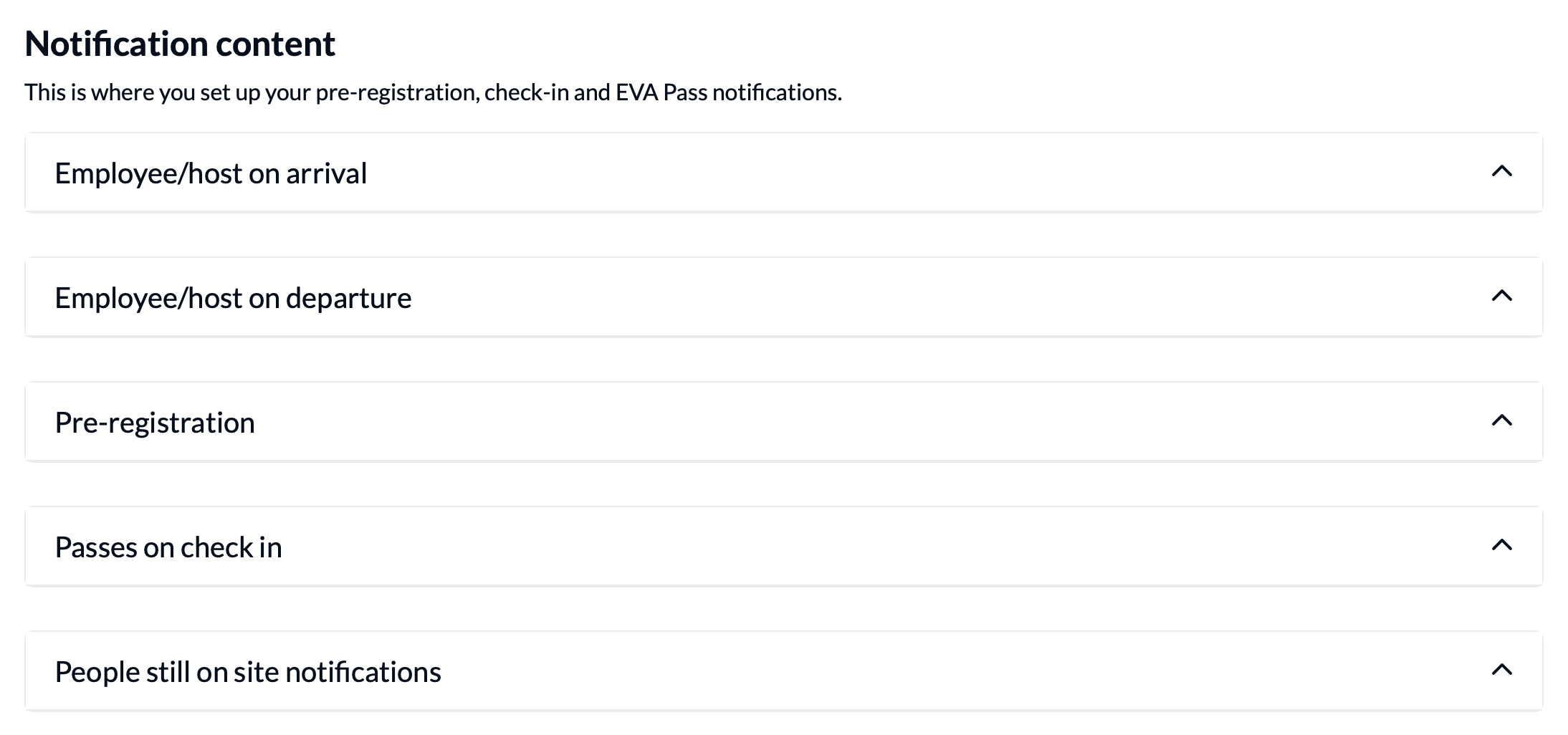
Notification content
For each type of notification, you can select the notification method/s and set up the relevant content (i.e. e-mail and/or SMS templates)
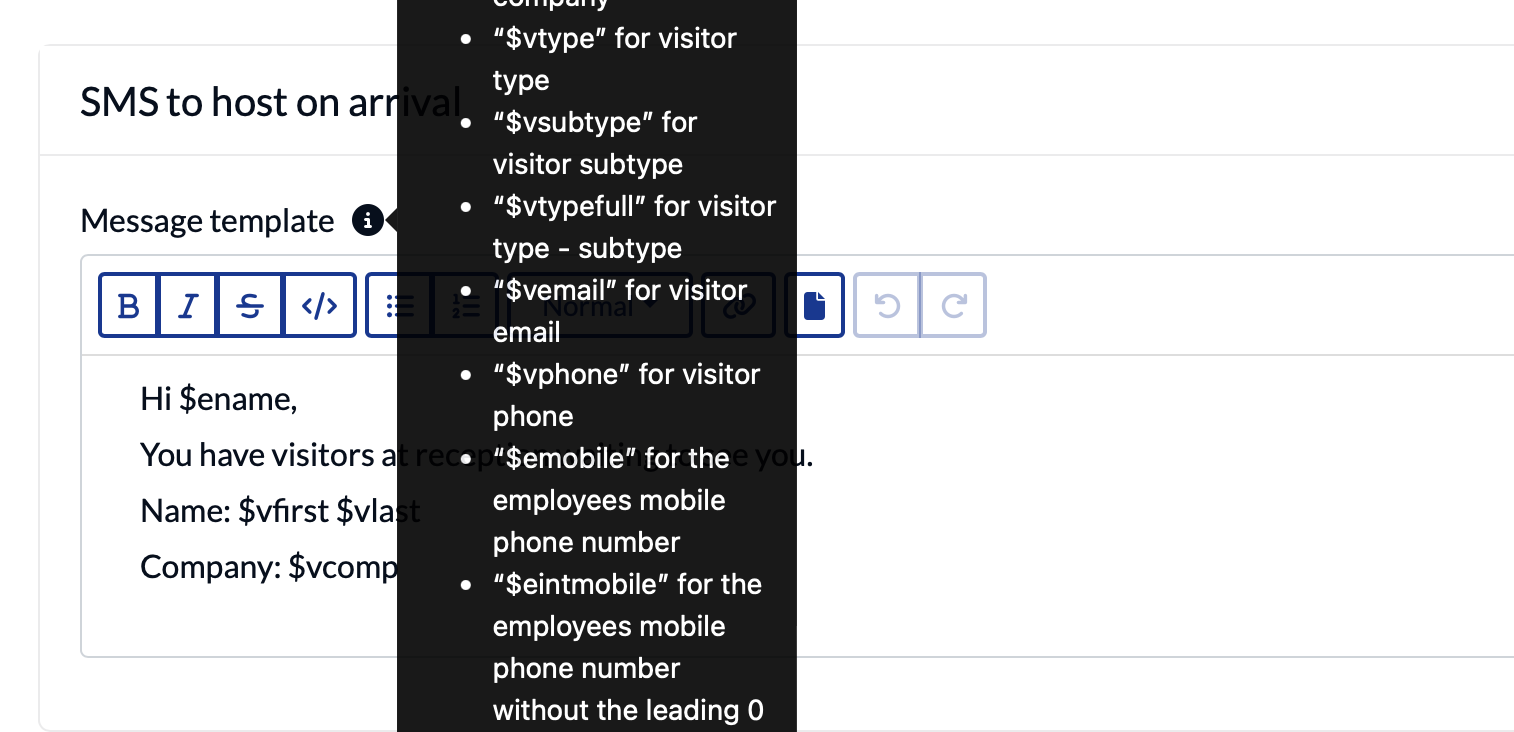
Click the info icon to see the variables you can use in this template, e.g. $vcomp for visitor's company:
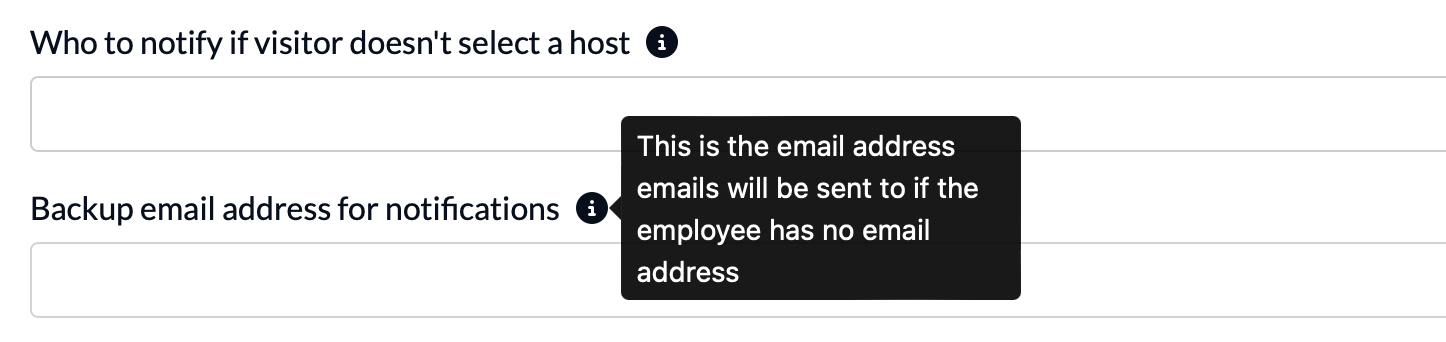
For host notifications, you can also specify who to notify if the person doesn't select a host, and a backup e-mail address (e.g. [email protected])
Once you have set up your templates, don't forget to test them.
Character limits - SMS notifications
The body of an SMS message should not exceed 160 characters, or up to 70 if the message contains one or more Unicode characters (such as emoji or Chinese characters).
If an SMS is longer, it will be split into multiple messages, which will have a cost implication. Learn more.
Notify a delegated employee
It's also possible to have a different person notified when a specific employee is the host. This might be useful for example if an executive has an assistant.
To set this up, navigate to Site information > Employees and click edit on the employee you want to add a delegate to - e.g. the executive.
Scroll to the bottom of the edit screen, and start typing to search for the employee (e.g. the assistant) who should receive notifications on the host's behalf.

Webhooks
You can use webhooks for notifications to other channels (e.g. Slack).
Notification logs
To check whether notifications have been successfully sent, you can search your Notification logs. Learn more