Manage users in EVA Check-in
Create user accounts so your team can access the EVA Check-in portal. Choose which sites each person can access and assign roles that match their responsibilities.
Quick links
Before you start
- You need the Customer administrator or Login administrator role to manage users.
- Have the person’s username, full name, email address and time zone ready. Decide which sites, roles and sign-in method they need.
- Each user’s email address must be unique across all EVA Check-in users.
- Login administrators can only assign roles they hold. For example, to assign the Receptionist role, you must hold both Login administrator and Receptionist.
Create a user
- Open Account settings > Users.
- Select Create user.
- Enter the person’s Username, Full name and Email.
- Enter their Phone number, if needed, including the country code.
- Select their Time zone.
- Choose their Sign-in method and complete the relevant settings.
- Choose their Access level and select sites if needed.
- Select at least 1 user role.
- Add any supplier process or permit role assignments they need.
- Select Save.
After saving, check that the person can sign in and access the sites and features they need.
Choose site access
Use Access level to choose where the person can work.
| Access level | What it means |
|---|---|
| Customer | Access across all sites in your account. |
| Site | Access to selected sites only. Choose the relevant sites in Sites. |
Site access and roles work together:
- Site access controls where the user can work.
- User roles control which features and actions they can access.
- Supplier process and permit roles control their participation in specific workflows.
Choose user roles
Select one or more roles based on the person’s responsibilities. Give them only the access they need.
| Role | What the user can do |
|---|---|
| Customer administrator | Access the full portal, including the core reception, operations, user management and pre-registration functions. Create and configure permit types, and view, create and manage permits for their organisation, within their site access. A relevant workflow role is required to complete, approve or progress a permit stage, or request a revision. |
| Receptionist | View Who is here and Visitor count, and manually check guests in and out. |
| Operations | View reports and logs; manage visitor profiles, person permissions, visit records, certified people and blocked visitors; and cancel or resolve SOS records when SOS is enabled. This is not a read-only role. |
| Login administrator | Create and edit users, and change passwords. Can only assign roles they hold. |
| Pre-registration | Pre-register visitors and use pre-registration features. |
| Supplier administrator | Create and manage suppliers, supplier contacts and supplier processes. Create and configure permit types, including roles, stages, access settings and notifications. View, create and manage permits for their organisation, within their site access. A relevant workflow role is required for permit stage actions. |
| Supplier operations | Create and manage suppliers and supplier contacts. View and create permits; edit details and validity dates; manage workers and signatures; link or unlink permits; and cancel, suspend or resume permits for their organisation, within their site access. A relevant workflow role is required for permit stage actions. |
Operations and Supplier operations are different roles. Operations does not provide supplier or permit access.
Understand Operations access
The Operations role includes actions that change records and permissions. Do not assign it solely because someone needs read-only reporting.
Manage people and visit records
Users with Operations can:
- Search visitor profiles, reveal masked information and print labels.
- Edit and save a person’s details.
- Grant or revoke per-site person permissions, including SOS initiation, evacuation warden, Who’s here and certificate renewal.
- Manage check-in reminders and send verification requests.
- Edit sign-in and sign-out times in Activity log.
- Edit visit answers, decline or cancel visits, upload or delete files, and complete sign-off form actions.
- Add, edit, delete and import certified people, and send certificate renewal requests.
- Add, edit and delete blocked visitors.
Certificate types are view-only.
Granting an authenticated visitor person an evacuation or Who is here permission in the mobile app is separate from accessing those screens through the portal.
Review reports and logs
Operations provides access to:
- Activity log
- Process and form logs
- Sign-off forms
- Audit log
- Evacuations report
- Notification logs, showing the last 13 days
- SOS logs, when enabled
- Check-in reminder logs
Available actions vary by screen and include filtering, CSV export, revealing masked information, viewing PDFs and completing forms.
Users can also cancel or resolve SOS records when the feature is enabled.
Understand the limits
Operations alone does not provide access to:
- Live screens: Who’s here, Visitor count or Evacuate.
- Set-up: sites, employees, zones, kiosks, process and form administration, files, site information or Premium kiosk.
- Visitor planning: pre-registration, visitor types, events or bookings.
- Account administration: users, integrations, Hub, Data policy, Data access log, account information or full billing.
- Suppliers and permits.
Set up sign-in
Use a username and password
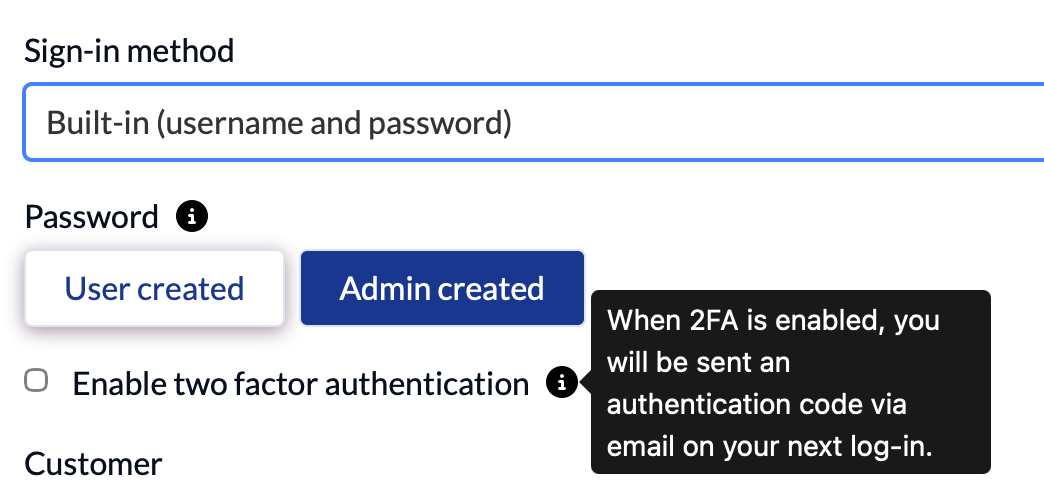
- Set Sign-in method to Built-in (username and password).
- Under Password, choose User created or Admin created, depending on who will create the password.
- Complete any additional fields shown.
- Select Enable two factor authentication if required by your organisation.
- Complete the user’s access settings and select Save.
Use a Microsoft work account
Microsoft sign-in must first be enabled on the Sign-in method tab of Account settings > Users.
When creating or editing the user, select Microsoft as their sign-in method.
Users assigned Microsoft sign-in use the organisation sign-in option. See Set up single sign-on with Microsoft for configuration and sign-in instructions.
Assign supplier process and permit roles
Account roles and workflow roles are separate.
- Account roles, such as Supplier administrator and Supplier operations, provide access to features and permit management. Managing a permit does not, by itself, allow a user to complete its workflow stages.
- Workflow roles, such as an approver role configured by your organisation, determine participation in supplier processes and permit workflow stages.
To add an assignment:
- Open the user’s record.
- Find Supplier process role assignments.
- Select Add assignment.
- Complete the assignment details for the relevant supplier process or permit.
- Select Save.
A user can have more than one permit role. Several users can hold the same role. Site-level users can act only at their selected sites.
Understand permit access
Managing a permit and completing its workflow stages are separate permissions.
Customer administrators, Supplier administrators and Supplier operations users can manage permits for their own organisation without a permit workflow role. Users with Site access are limited to permits on their own and assigned sites. These limits apply to viewing, creating and managing permits.
These account roles allow users to:
- View permits and their supporting records, including clashes, links, people, approvers, audit logs, questions, PDFs and files.
- Create permits.
- Edit the description, permit holder and zones.
- Edit validity dates, subject to the permit type’s settings.
- Add or remove workers.
- Sign on behalf of workers, invalidate signatures and send signing requests.
- Link or unlink permits.
- Cancel, suspend or resume permits.
To fill in, approve or progress a workflow stage, or request a revision, the user also needs a workflow role with the relevant access to the current stage. This applies even to the first stage of a permit they have just created. Assign workflow roles through Supplier process role assignments on the user’s record.
For more information, see:
Update a user
- Open Account settings > Users.
- Find the user and open their record for editing.
- Update their details, sign-in settings, site access, roles or workflow assignments.
- Select Save.
Review access when someone changes responsibilities. Remove roles, site access and workflow assignments they no longer need.
Troubleshoot access
| Problem | What to check |
|---|---|
| The email address is already in use | Check whether the person already has an EVA Check-in user account. Email addresses must be unique across all users. |
| You cannot assign a role | If you are a Login administrator, check that you also hold the role you want to assign. |
| “You must assign one or more roles to the user” appears | Select at least 1 user role checkbox, then select Save. |
| The user cannot access a site | Review Access level and Sites. |
| The user cannot access a feature | Review their user roles. Operations does not include live reception screens or supplier features. |
| The user can manage a permit but cannot complete or approve a stage, or request a revision | Check their Supplier process role assignments and access to the current stage. Customer administrator, Supplier administrator and Supplier operations do not grant stage actions by themselves. Also check site access and the permit type’s screen and field permissions. |
| Microsoft sign-in is unavailable | Check the account’s Sign-in method settings and the user’s selected sign-in method. Follow the Microsoft sign-in guide for any approval requirements. |