EVA Check-in mobile app
The free EVA Check-in mobile app makes checking in fast, easy and secure for visitors, contractors and staff. Read this guide to learn how to download and use the mobile app.
In this guide
How to download the app
Search for EVA Check-in in the relevant app store, or use the links below on your device.
iPhone
Download EVA Check-in from the App Store.
Android
Download EVA Check-in from Google Play.
App settings
Location access for automatic check-in
When prompted, allow location access. For geofencing to work, set location access to Always on iPhone or Allow all the time on Android.
Location and privacy
If you opt in to location features, EVA Check-in uses your location only to decide whether a check-in or check-out event should be triggered. For more information, see the EVA Check-in privacy policy.
Your location is used by the EVA Check-in app in the background. This permission is required for the feature to work. EVA Check-in does not store this information or make it visible to administrators or other users.
Notifications
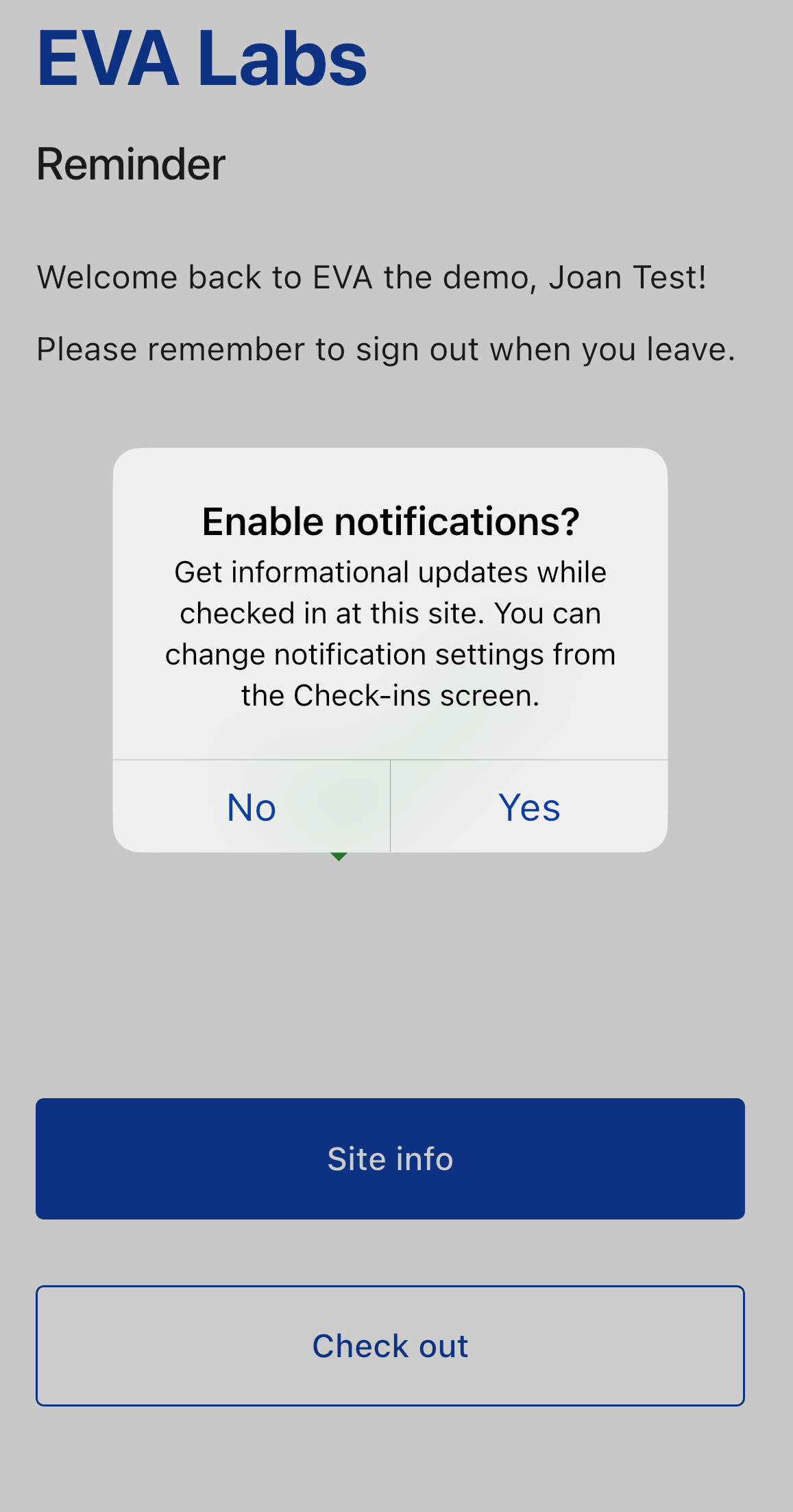
When prompted, allow notifications so you receive important messages during events such as evacuations.
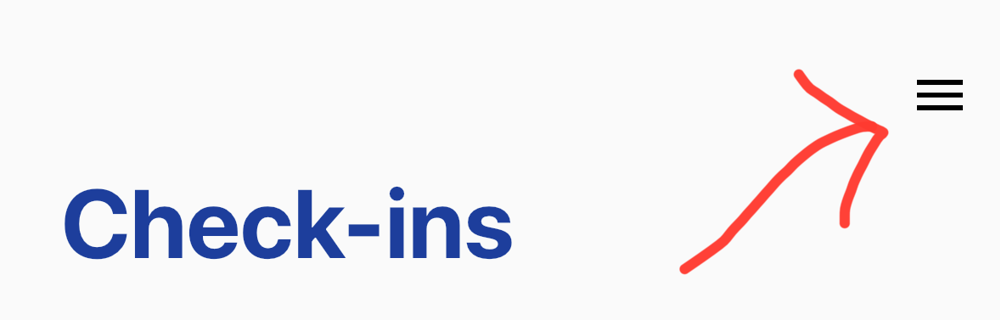
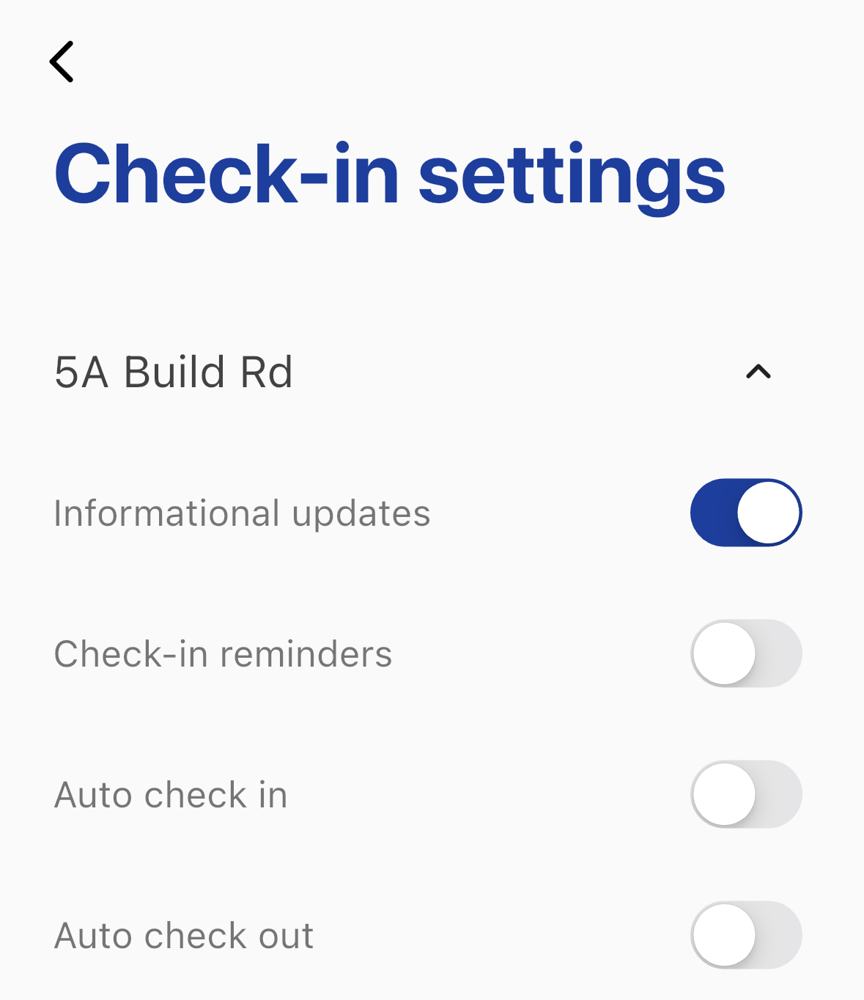
If you need to check or change app settings later, use the menu in the top-right corner of the app.
Check in using the mobile app
There are 3 ways to check in using the mobile app.
QR code
- Open the app.
- Select Scan QR to scan the QR code displayed on the poster or kiosk.
- Complete the check-in details.
Geofence
At geofence-enabled sites, use your device location features to check in automatically when you arrive. Learn how geofencing works.
Nearby
If the app detects a nearby check-in location, a Nearby button appears. Select it to verify the site and start check-in.
Check out using the mobile app
There are 2 ways to check out of a site using the mobile app.
Check out button
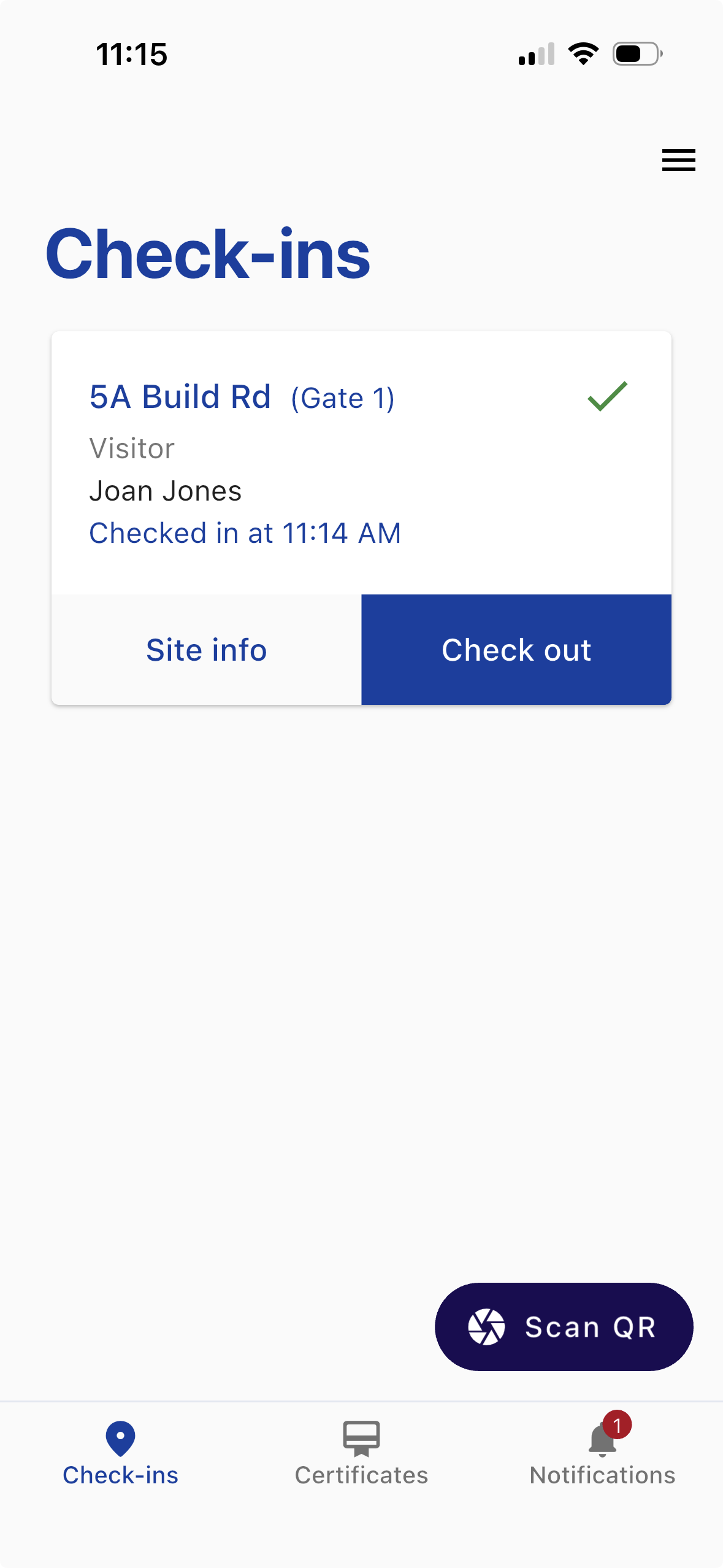
On the Check-ins screen, select Check out when you leave a site.
Geofence
At geofence-enabled sites, EVA Check-in can check you out automatically when your phone detects that you have left the geofence.
For this to work, allow background location access and keep Auto check out enabled for the location. If automatic check-out does not work, select Check out from the Check-ins screen.
See Geofencing: Troubleshooting for help with location permissions, battery settings, and connectivity.
Certificates
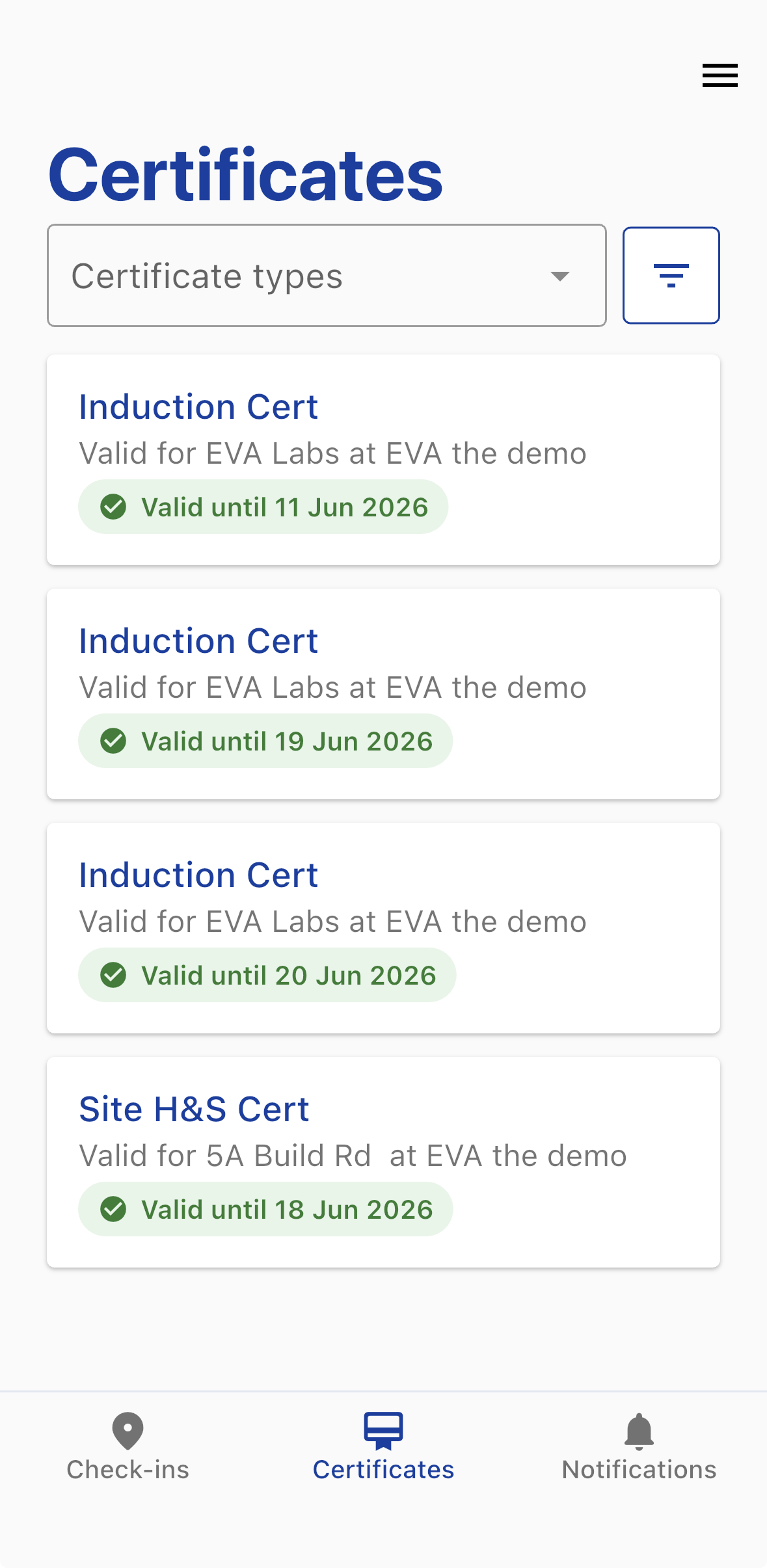
View your certificates, such as induction and health and safety certificates, across all sites from the Certificates tab. Filter by certificate type, company, site, and expiry.
Notifications
The Notifications tab gives you access to notifications sent while you are on site, including daily alerts and emergency notifications.
Site info
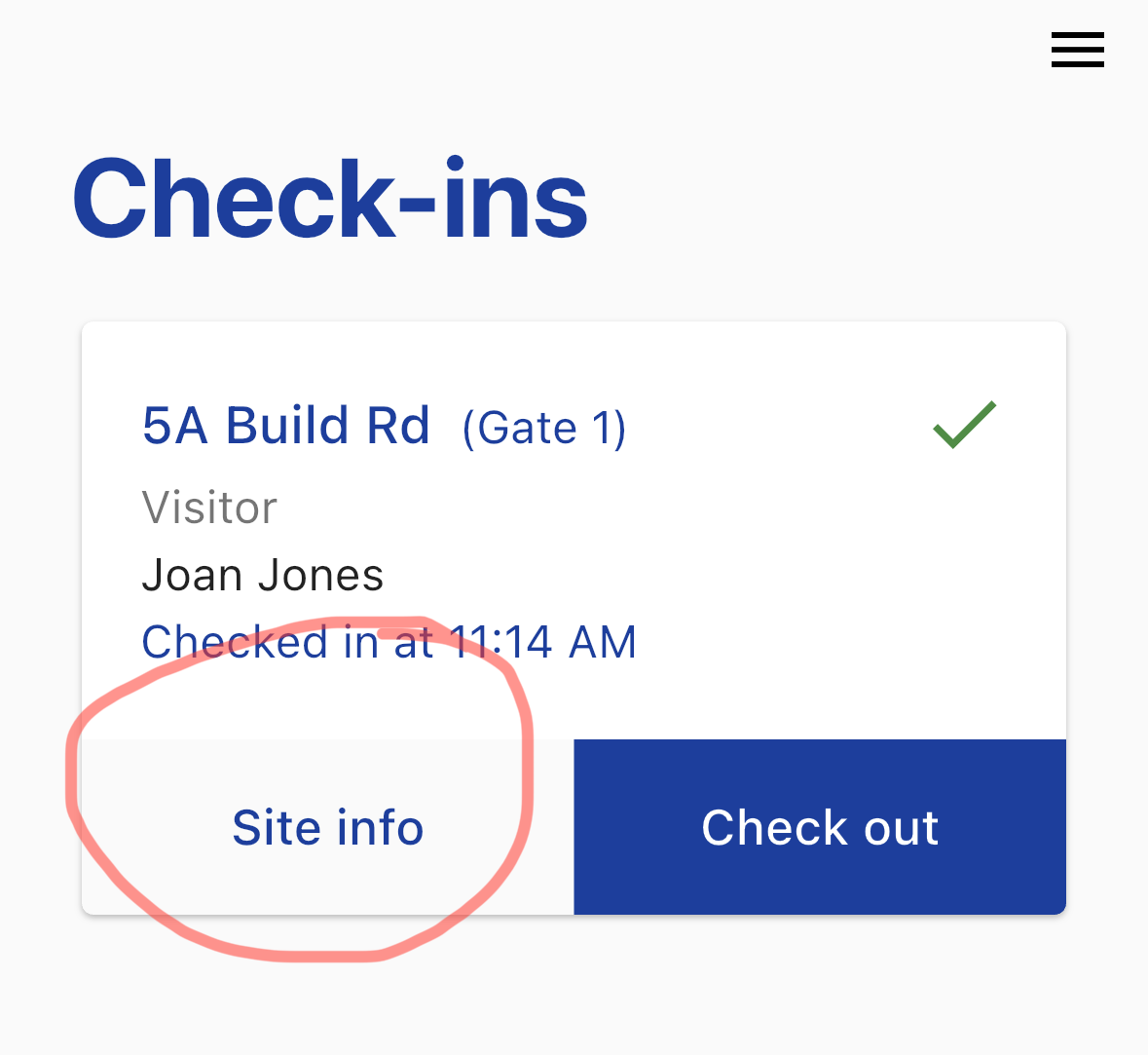
Access Site info from the Check-ins tab.
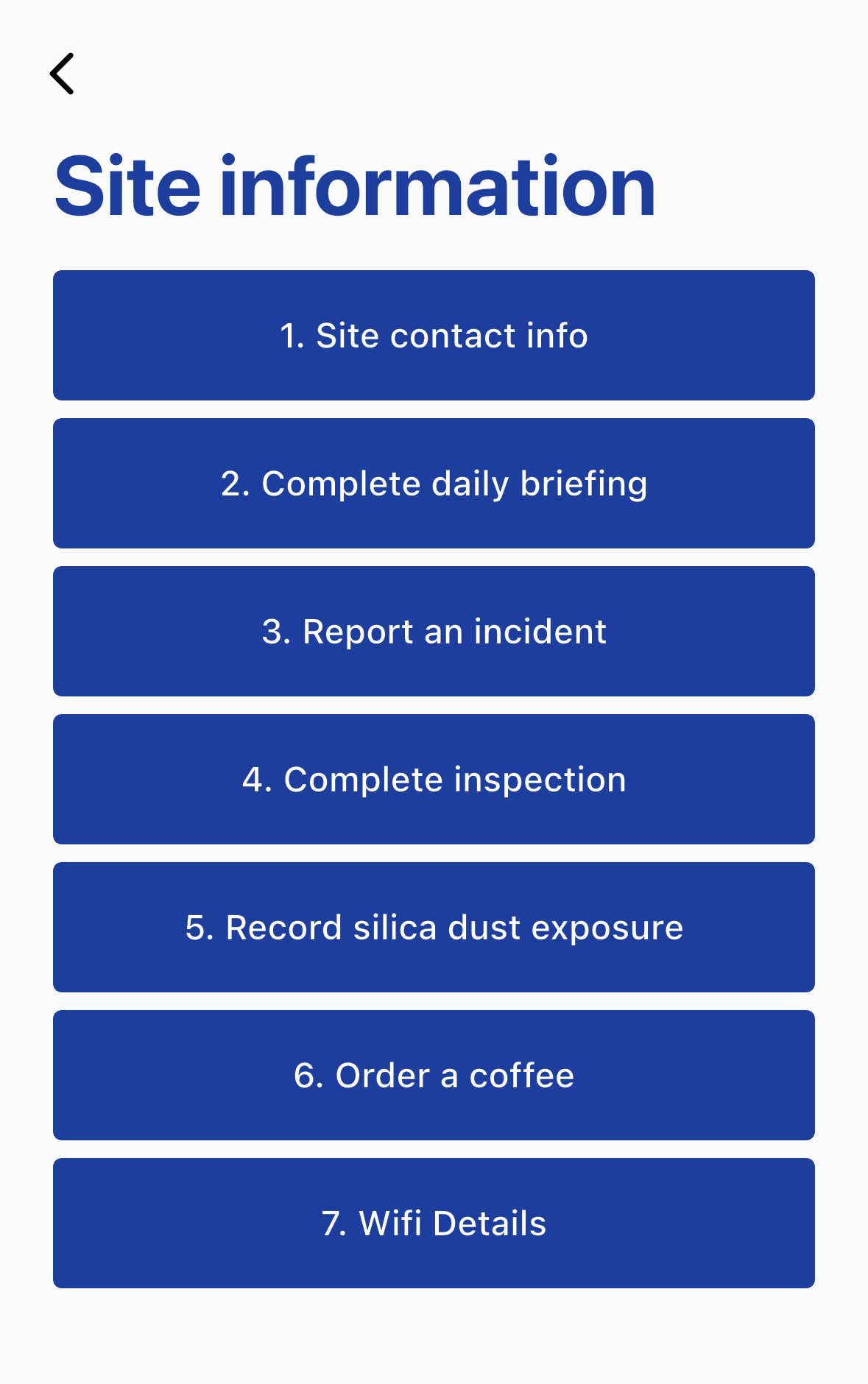
This is where you can view essential information for your visit to site.
Check-in history
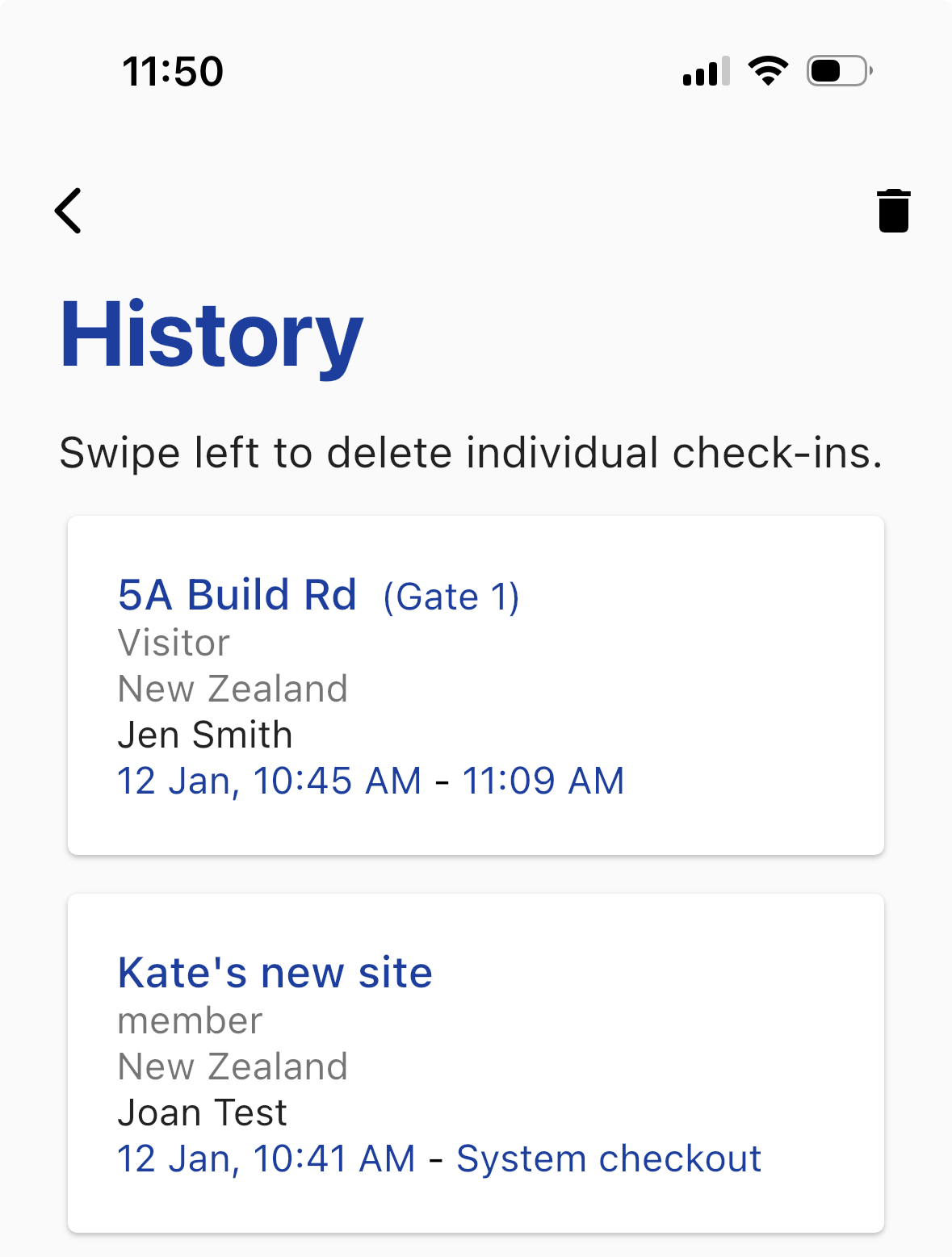
To see a record of recent check-ins, select History from the menu.
Profiles
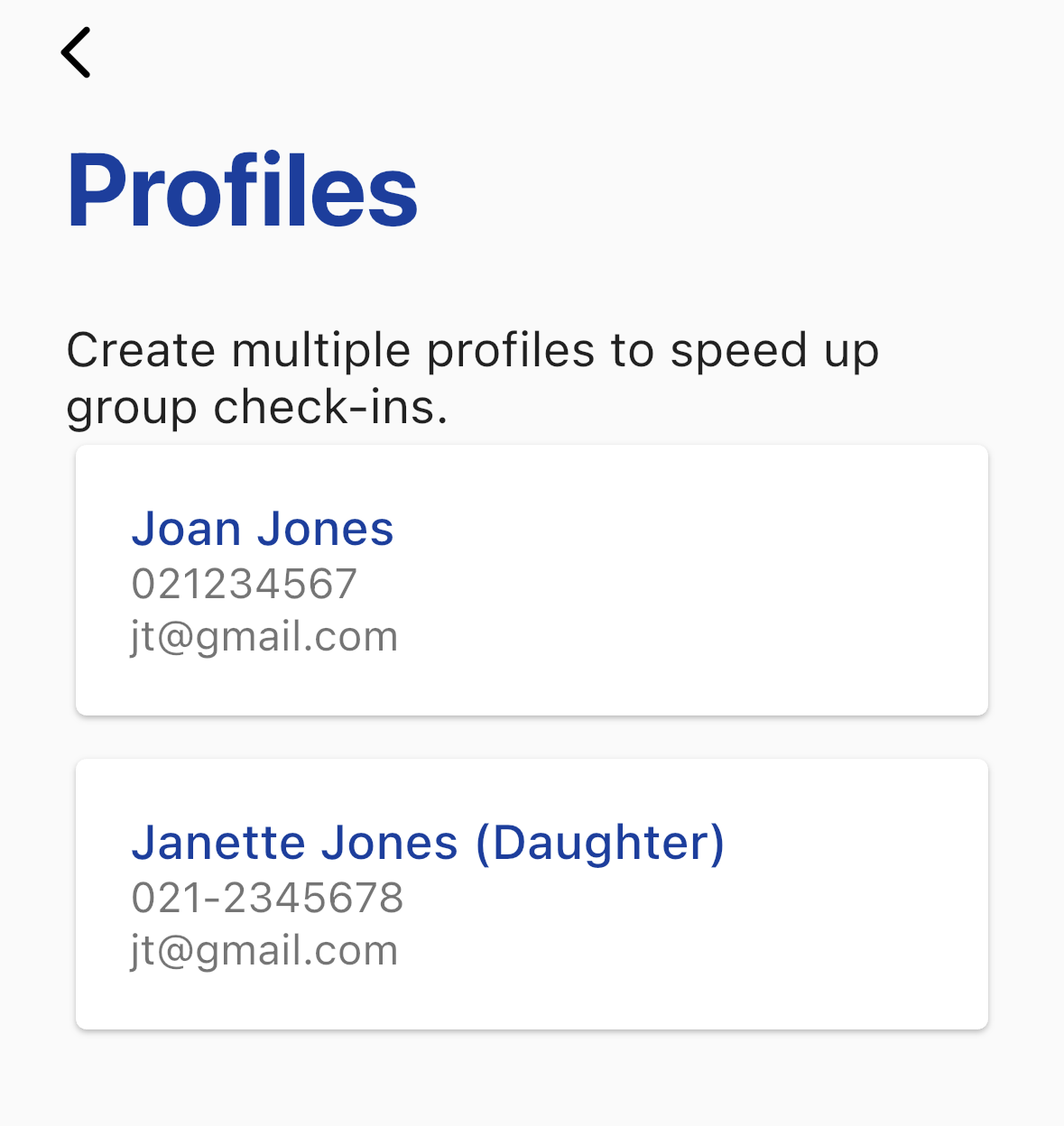
If you need to check in with a group, such as family with children, or work across multiple organisations with different details, you can create a separate profile for each person or identity.
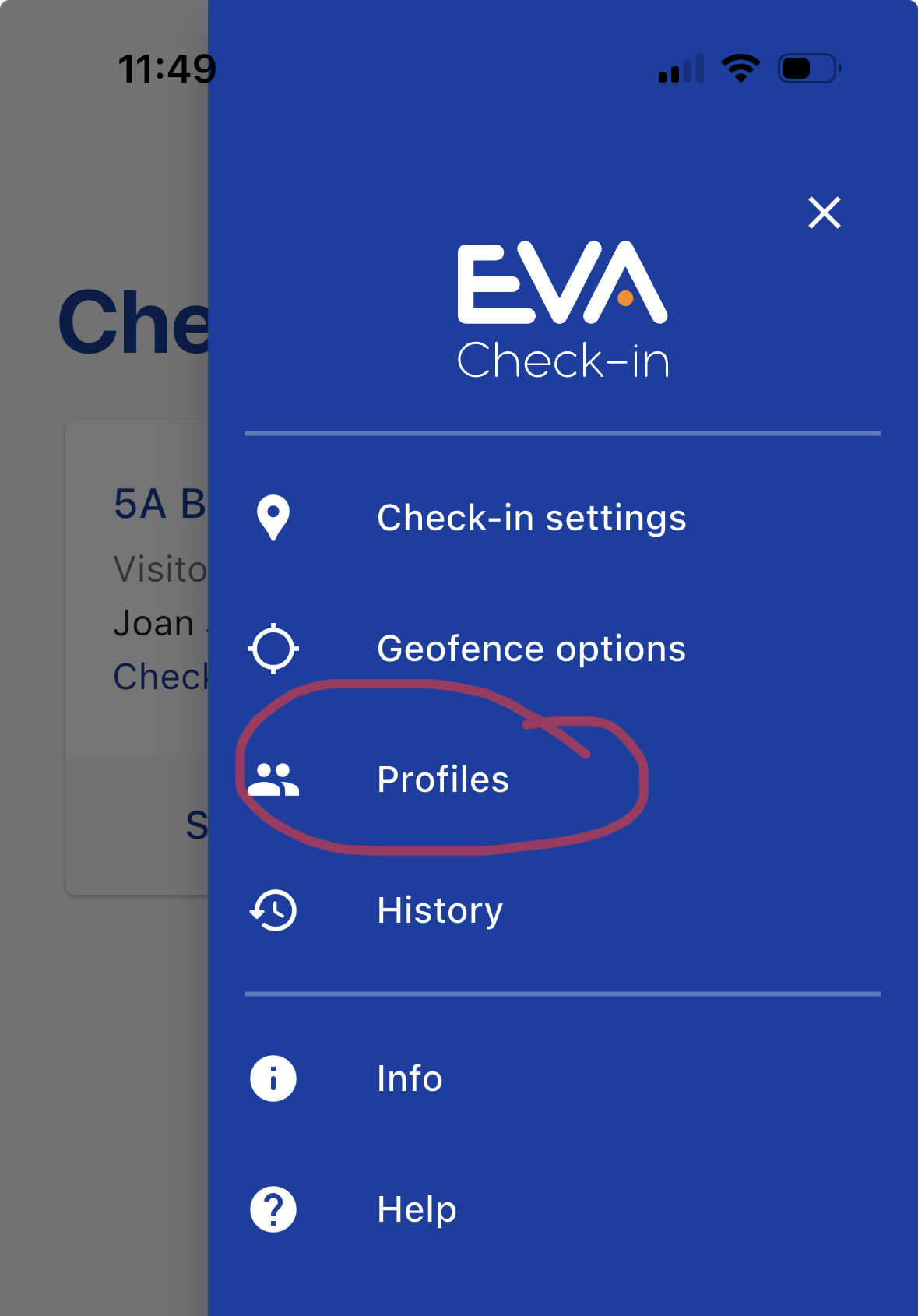
Go to Profiles in the menu and select + Create.
Additional options for some users
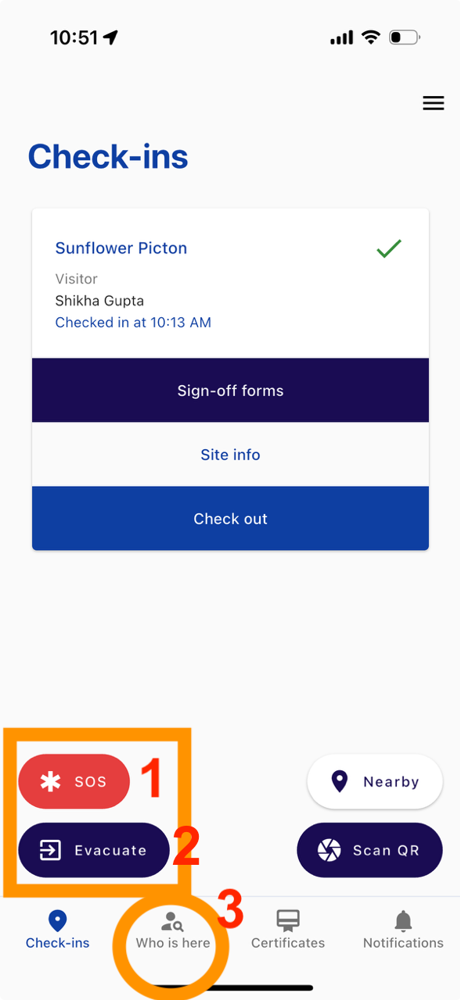
Users with special permissions may see additional buttons on the check-in screen and an additional menu item.
- You must have the relevant permissions assigned by the administrator of the organisation you are checking in at.
- You must complete a one-time device verification step. Learn more about authenticated visitors.
SOS button
Feature coming soon, available to preview on request
This button will allow you to trigger an SOS from the mobile app. Contact us for more information.
Evacuate button
This allows evacuation wardens to start an evacuation directly from the mobile app. Learn more about evacuations.
Who is here
This allows users with the Who is here permission to see who is currently on site.