Zone selector
Zone selector allows visitors to check in to different zones via a single entrance. This can work well for:
- Shared offices with one entry/reception
- Work sites with a single entrance and multiple work zones
- Training facilities and after school or holiday programmes
- Hospitals or clinics with a single entry and multiple destinations - e.g. outpatients, radiology etc
In this article...
What is a zone?
In EVA Check-in, zones describe distinct areas within a single site e.g. floors, buildings, wings, gates, business units, or even named programmes.How to set up zone selection
Set up the zones within your site
- Go to Check in > Create zone
- One zone should be set as your entry zone (typically, your front door, gate, reception area etc). This zone will not appear in the zone selection screen for visitors.
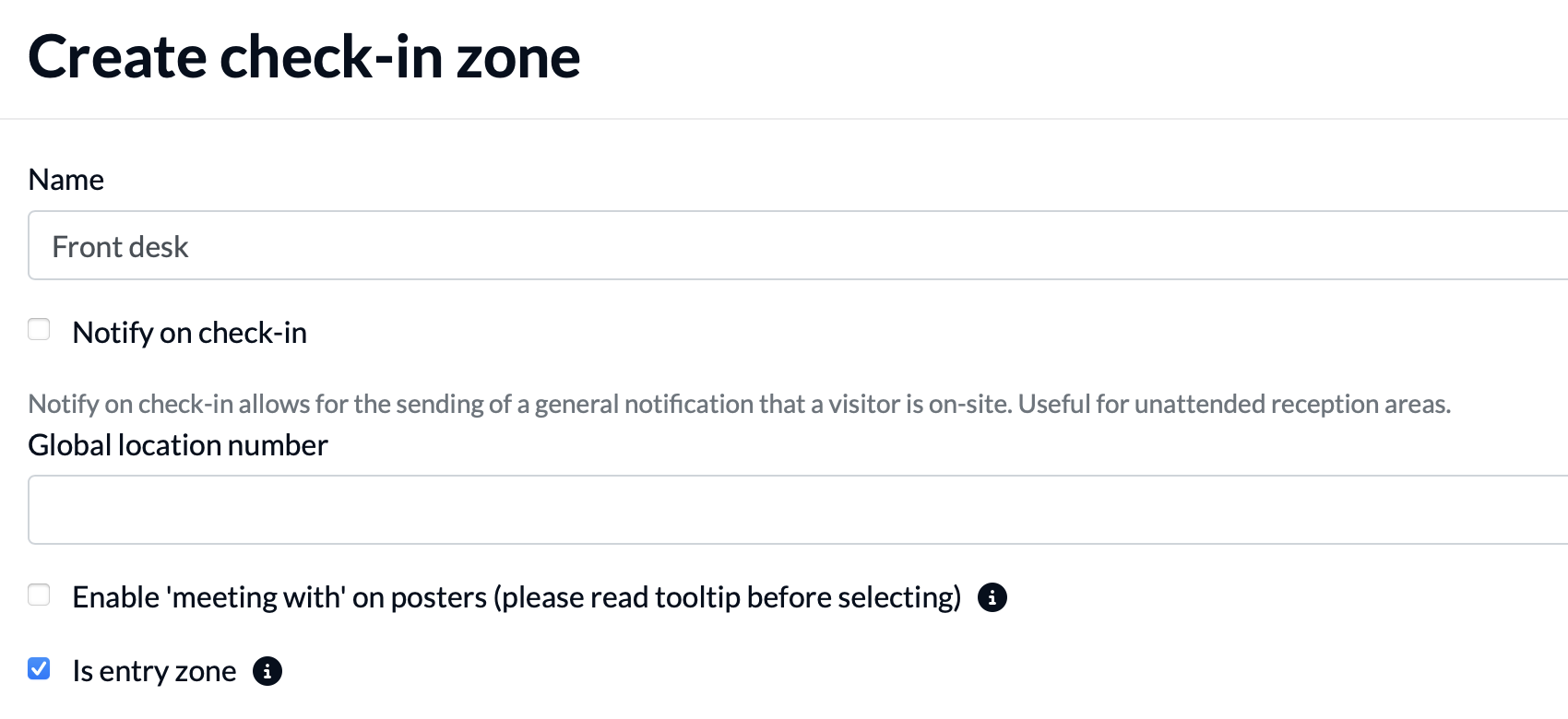
- Other zones could be things like: Level 3; Work zone A; Robotics class; Radiology; Pilates studio; etc
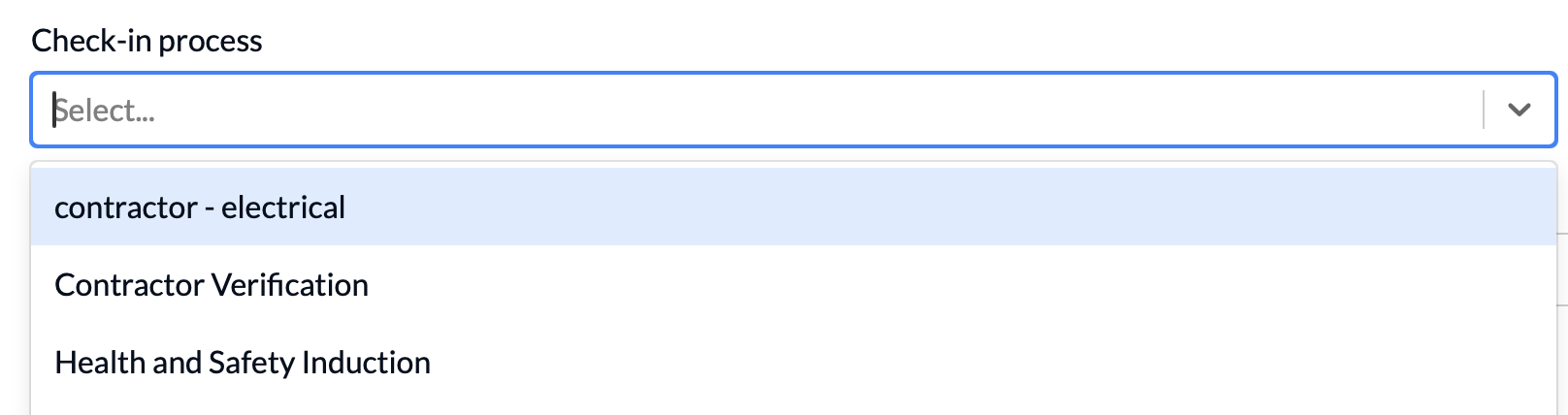
- Use the standard check-in flow or a select a custom flow with extra steps - for example if some zones carry different safety requirements. Zone Selector connects the visitor’s destination with the right process.
Enable Zone selector
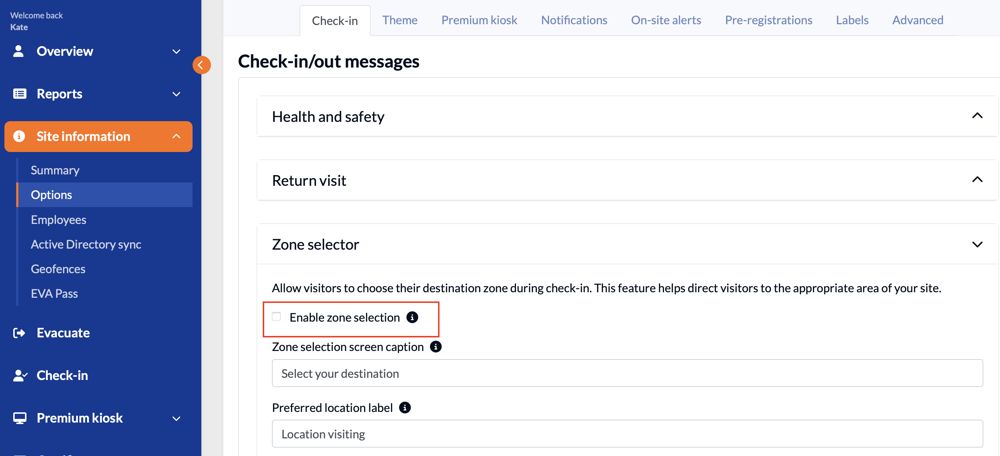
- Go to Site information > Options > Check-in and check Enable Zone selection
- Modify captions and labels to suit
How zone selection works
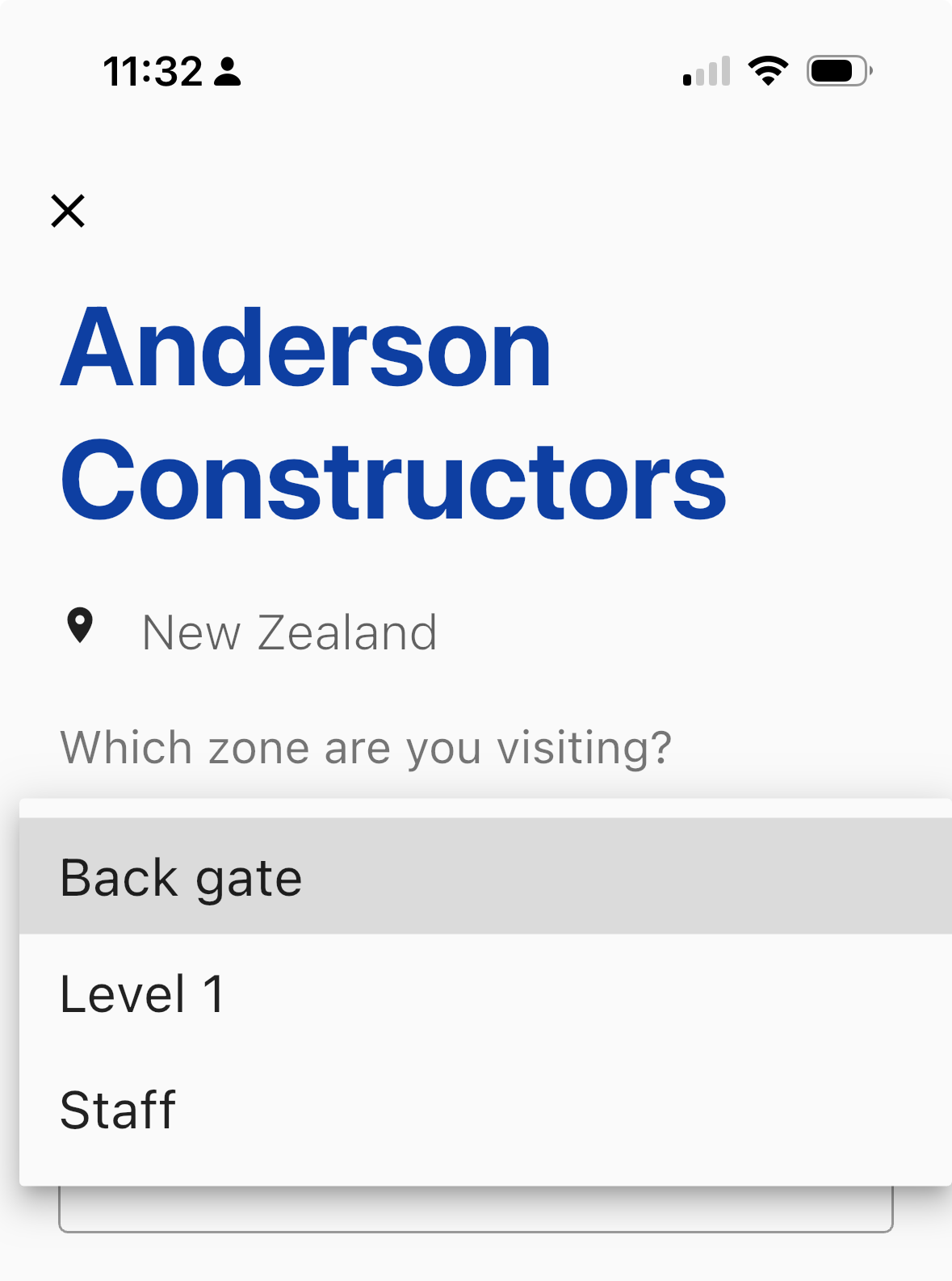
Visitors can choose where they are going after they check in at the reception or entrance gate. That choice is recorded on the visitor’s profile and on live presence views, so you know where people are across the site.
Zone selector and geofences
If a visitor checks in using the mobile app, and the zone has a geofence, that zone will be automatically selected. The visitor can change the zone selected on the app if they wish.
IMPORTANT: Geofences should not be applied to the entry zone for your site, but rather to the destination zones.
Zone selector and return visits
If return visits are enabled (for kiosk and manual/administrator check-ins), the Zone selector screen will be displayed after the Welcome back screen
The last selected zone will be displayed as the default, but the visitor will be able to choose a different zone if required
Benefits of zone selection
- Combine a single reception or main gate check-in with accurate on-site location awareness for maximum flexibility across a variety of workplace, education and healthcare scenarios
- Zone specificity supports better safety, faster evacuations and operational clarity
- Broadcast communications via on-site alerts can be sent site-wide or just to individual zones
- Send zone data to Procore